| Make a Start with Excel |
| |
| How to Enter Text and Numbers in a Cell |
| |
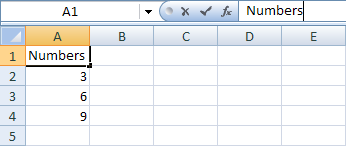
| To make a start with Excel 2007, we'll create this really simple spreadsheet: |
| |
 |
| |
| All we're going to be doing here is entering some text and some numbers. We're not adding anything up yet. |
| |
| Before you tackle this first exercise, though, you may want to take note of the Undo feature of Excel 2007, just in case you make a mistake. The Undo option is the left curved arrow, right at the top of your screen. This one: |
| |
 |
| |
| Click the left curved arrow to Undo something, and click the right curved arrow to redo it. |
| |
| So click inside of cell A1 on your spreadsheet, and do the following: |
| |
. Type the word "Numbers" (with no quotation marks)
. Hit the Enter key on your keyboard
. The active cell will move down one, to cell A2
. Type the number 3, and again hit the Enter key on your keyboard
. The active cell will move down one, to cell A3
. Now put the number 6 into cell A3, and the number 9 in cell A4
. After you have typed the number 9, and hit the Enter key, you should see that cell A5 is now the active cell |
| |
| The text we entered in cell A1 is known as a Heading. It's there just to tell you what the numbers mean. Except our heading doesn't tell us a great deal. Let's change it to something else. |
| |
| For Animated Presentaiton Click Here! |
| |
| |
|
| |
| |


