| Working with Bitmaps |
| |
| 3D Effects |
| |
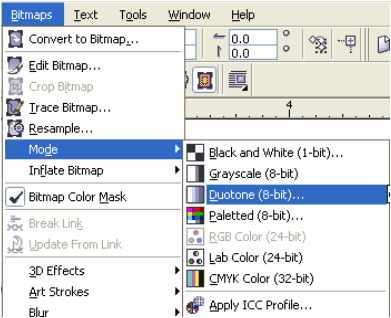
| You can create 3D effects on bitmaps. CorelDraw provides number of 3D effects which can be applied on bitmap images. These are 3D rotate, Emboss, page curl, perspective, pinch/punch, sphere. |
| |
| For any 3D effect on bitmap |
| |
| . Go to Bitmap>3D effect |
| |
| . Select from the drop-down list. |
| |
 |
| |
| 3 D Rotate effect on Bitmap |
| |
| You can apply 3D Rotate effect on any bitmap image. |
| |
| For 3D Rotate |
| |
| Select Bitmap Image. |
| |
 |
| |
| Go to Bitmap>3D Effect> 3D Rotate. |
| |
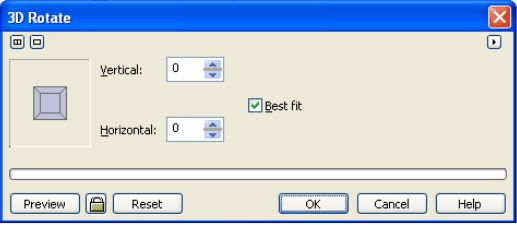
| A dialog box will appear on the screen. |
| |
 |
| |
| . Specify values in vertical and horizontal list boxes. |
| |
| . Click on Best to fit. |
| |
| . Click Ok. |
| |
| . After 3D rotate a bitmap image would something like this: |
| |
 |
| 3 D cylinder It will create 3D cylinder effect on bitmap images. |
| |
| . Select Bitmap Image. |
| |
| . Go to Bitmap>3D Effect> Cylinder. |
| |
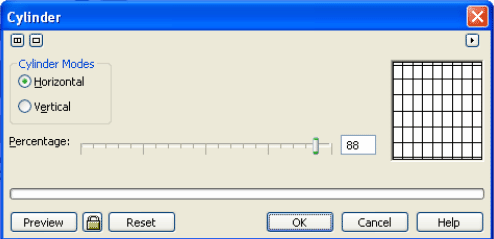
| . A dialog box will appear on the screen. |
| |
 |
| |
| . Select any cylinder mode and adjust percentage. |
| |
| . Click Ok. |
| |
| . After cylinder effect a bitmap image would something like this: |
| |
 |
| |
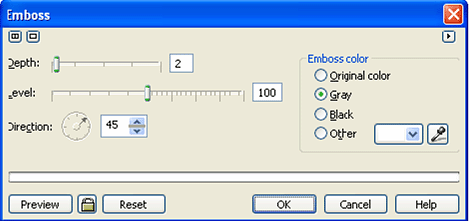
| Emboss: This effect will create embossing effect on bitmap images |
| |
| Select Bitmap Image. |
| |
| . Go to Bitmap>3D Effect> Emboss. |
| |
| . A dialog box will appear on the screen. |
| |
 |
| |
| . Specify values of Depth and Level. |
| |
| . Specify Direction of Emboss angle. |
| |
| . Select emboss color from the radio buttons right. |
| |
| . Click Ok |
| |
| . After Emboss effect bitmap image would something like this: |
| |
 |
| |
| Perspective: |
| |
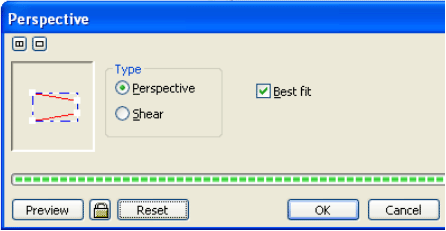
| This effect will create perspective effect on bitmap images |
| |
| . Select Bitmap Image. |
| |
| . Go to Bitmap>3D Effect> Perspective. |
| |
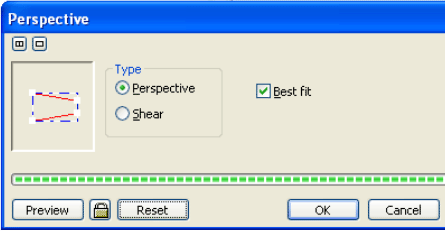
| . A dialog box will appear on the screen. |
| |
 |
| |
| . Adjust rectangle on the left of dialog box. |
| |
| . Click on best fit check button. |
| |
| . Click Ok |
| |
| . After perspective effect bitmap image would something like this: |
| |
 |
| |
| Page curl: |
| |
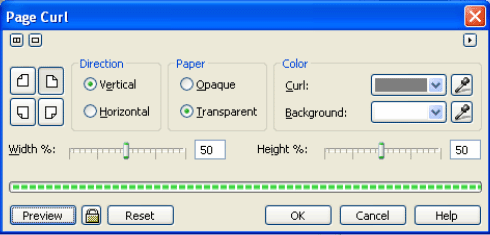
| This effect will create page curl effect on bitmap images |
| |
| . Select Bitmap Image. |
| |
| . Go to Bitmap>3D Effect> Page curl |
| |
| . A dialog box will appear on the screen. |
| |
 |
| |
| . Click on vertical or horizontal check box. |
| |
| . Click on Transparent for transparent effect. |
| |
| . Specify Curl color |
| |
| . Drag right to increase width and height percentage. |
| |
| . Click Ok. |
| |
| . After pagecurl effect bitmap image would something like this: |
| |
 |
| |
| |
|
| |


