 |
 |
 |
| Working with Bitmaps | |||
| Mode | |||
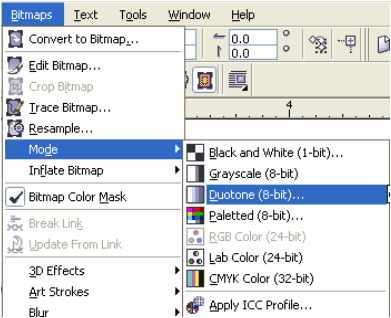
| You can convert color mode of bitmap image to various type of modes ie black and white, grayscale, duotone, paletted, Lab color, CMYK & RGB color mode. | |||
| CorelDraw provides facility of converting one color mode to other mode. | |||
| CorelDRAW provides color modes when dealing with bitmaps: | |||
| . Black-and-White (1-bit) | |||
| . Grayscale (8-bit) | |||
| . Paletted (8-bit) | |||
| . Duotone (8-bit) | |||
| . RGB Color (24-bit) | |||
| . LAB Color (24-bit) | |||
| . CMYK Color (32-bit) | |||
| . Black-and-White (1-bit) | |||
| This is the simplest of color modes and is seldom used when dealing with photographs. 1-bit bitmaps contain the lowest number of colors per pixel in which a graphic can be stored. In a 1-bit bitmap, pixels are either black or white. This color mode is usually used when working with line art or other graphics which require only one shade of black and no other colors. | |||
| Grayscale (8-bit) | |||
| Supporting up to 256 different shades of black, this color mode is often used when a bitmap must contain more than one shade of black but requires no color. Because it contains only one color channel (black) it makes for a smaller file size than an all-black bitmap which uses a 24-bit or 32-bit color mode. Usually when people have a photograph and they say that they would like to convert it to black-and-white, they are usually referring to Grayscale (8-bit). | |||
| Paletted (8-bit) | |||
| This color mode also supports a maximum of 256 colors, however those colors can consist of any of the colors available in the RGB color spectrum. By default, converting a bitmap to Paletted (8-bit) will result in the color palette being automatically generated based on the colors provided in the source document. If the document contains colors that are not found in the RGB color spectrum (i.e. Pantone), it will convert them to the closest available RGB value. In the event that the source document contains more than 256 colors, the color palette will consist of the most used colors in the image. | |||
| Duotone (8-bit) | |||
| There are four different types of duotones: monotone, duotone, tritone and quadtone. Monotones support only one color, duotones support two, tritones support three and quadtones support four. When a bitmap is converted into a duotone (8-bit), the user is prompted to first select the type of duotone that will be created and then choose the colors that will be used in the bitmap. Duotone bitmaps must use Pantone colors and will always output grayscale as Pantone colors cannot be reproduced using CMYK inks. In addition to this, Duotone bitmaps are typically used when color separations will be created from the document. As such, color is not required when the separations are output. | |||
| RGB Color (24-bit) | |||
| This is the most commonly used color mode as it uses three 8-bit channels (Red, Green and Blue) which allow 256 shades of each color to be displayed, resulting in the possibility of 16.7 Millions different shades, representing of up to 16.7 Million colors (256 x 256 x 256). Color depth such as this is typically used in photographs where 8-bit color simply won't do. Computer monitors display color using RGB Color (24-bit) and as such, this color mode is typically preferred among those who design graphics for the web or primarily for display on screen. | |||
| LAB Color (24-bit) | |||
| This color mode was developed based on how the human eye perceives color. L represents Lightness while A represents the color along the red/green axis and B represents the color along the blue/yellow axis. This color mode can consist of all colors in the RGB color spectrum and is device-independent. | |||
| CMYK Color (32-bit) | |||
| CMYK is the color mode used by most color output devices and is usually used when documents that contain more than four colors are to be separated (less than four colors will often use Pantone colors instead). Because colors are displayed by combining Cyan, Magenta, Yellow and Black, a color with a CMYK value will usually shift slightly if converted to another color mode (such as RGB Color (24-bit). For this reason, most designers will convert bitmaps to CMYK prior to printing or will specify that CorelDRAW convert them when printing. | |||
| For Changing Mode | |||
| . Click Bitmap>Mode | |||
| . Select any mode from the drop down menu of mode. | |||
|
|||
|
|||