| Working with Bitmaps |
| |
| Converting graphic to Bitmaps |
| |
| By converting a vector graphic to a bitmap ensures special effects that are unavailable to vector graphic or objects. As you convert the vector, you can select the color mode of the bitmap. A color mode determines the number and kind of colors that make up the bitmap, so that file size is also affected. |
| |
| Vector files are usually considerably smaller than a bitmap file of the same image, since there is less information required to achieve the same results. The exception is in photographic type images where color changes with almost every pixel. This type of file is best created and edited in a bitmap program. |
| |
| To Convert vector graphic to bitmap |
| |
| . Open any vector image. |
| |
 |
| |
| . Keep it selected. |
| |
| . Go to Menu bar. |
| |
| . Click on Bimap>Convert to Bitmap |
| |
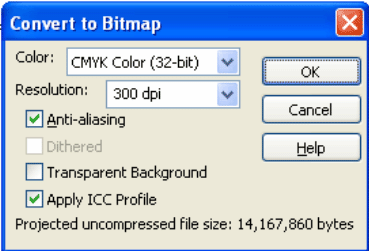
| . Dialog box will appear on the screen. |
| |
 |
| |
| . Choose any color mode you desire ie CMYK, RGB etc from the color list box. |
| |
| . Choose resolution from the Resolution list box. |
| |
| . Enable any of the following check boxes: |
| |
| . Anti-aliasing - smooths the edges of the bitmap |
| |
| . Transparent background - makes the background of the bitmap transparent |
| |
| . Apply ICC profile - applies the International Color Consortium profiles to standardize colors across devices and color spaces |
| |
| . Click Ok. |
| |
| |
|
| |


