| Working with Bitmaps |
| |
| Editing Bitmaps |
| |
| Why Edit Bitmap Images in CorelDRAW? |
| |
| CorelDRAW is not really a full-features bitmap editor. So what's the point of editing bitmaps in CorelDRAW ? If you work exclusively with bitmap images, you should work in Photo-Paint instead of CorelDRAW. But if you combine both vector and bitmap images, CorelDRAW supports this much better than PHOTO-PAINT or any bitmap editor. |
| |
| At this point, you might be asking yourself, "Can't we all just get along? Why can't somebody come up with a program that will edit both bitmap- and vector-based graphics?" Well, somebody has, and you're using the program. CorelDRAW includes a Bitmap menu that lets you create, edit, and save bitmap images in CorelDRAW. So, in effect, you can work in a mixed environment. |
| |
| The one thing that you cannot do is transform bitmap images to vector-based images. Programs exist that attempt to trace the lines in bitmap images and convert them into vector-based curves, but these programs are basically trying to guess at which dots should be converted to which lines, and the results are usually not satisfactory. |
| |
| Importing Bitmap Images |
| |
| Simply select File > Import from the menu bar, and use the Look In drop-down list to navigate to the folder on your system in which your graphic files are stored. Or if you are opening one of the thousands of bitmap clip art images that come with CorelDRAW from your CD-ROM, navigate to your CD drive. |
| |
| . Keep it selected. |
| |
| Applying Effects to Bitmaps |
| |
| After you create a bitmap image in CorelDRAW , you can apply some useful effects that are not available for vector-based objects. |
| |
| Those effects include using a color mask to strip any unwanted color out o1f an image, assigning transparency to bitmap images so that they appear to have no background when displayed on web sites, and applying a fun range of distortion effects to your image. |
| |
| Other effects include transformations with names such as Solarize, Impressionist, Psychedelic, Glass Block, and Vignette. |
| |
| Using a Color Mask on Bitmap Images |
| |
| You can use bitmap color masks to eliminate any color from any bitmap image. This is especially useful with scanned or imported photos. Color masking can be, in effect, a recoloring tool. Too much red or blue in a photo? You can correct that with color masking. |
| |
| You can also use color masking to transform the fills of any bitmap images. |
| |
| Stripping a Color from a Bitmap Image |
| |
| . Open a bitmap image |
| |
 |
| |
| . Select the bitmap image. Handles appear, just as they do when you select any object in CorelDRAW. |
| |
| . Select Bitmap | Bitmap Color Mask from the menu bar. |
| |
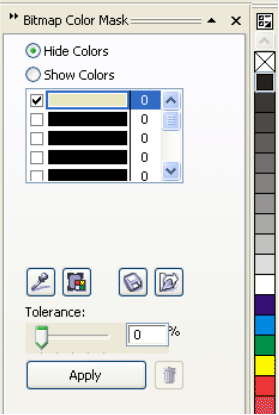
| . Click on the first bar in the Bitmap Color Mask rollup. |
| |
 |
| |
| . Click on the Color Selector, that looks like an eyedropper |
| |
| . Move your cursor, in the bitmap image, over the color you want to remove. That color appears in the first bar of the Bitmap Color Mask rollup. When the color in the rollup matches the color you want to delete, click with the Color Selector cursor. |
| |
| |
|
| |


