| Tips and Tricks in CorelDraw |
| |
| Use of Nudge Offset Button |
| |
| Before you must know the use of Nudge Offset, you must learn how to move any object with the help of arrow keys. |
| |
| For this you should know the function of these arrow keys in coreldraw. |
| |
| Up Arrow |
 |
For moving any object in upward direction. |
| |
|
|
| Down Arrow |
 |
For moving any object downward use Down arrow key. |
| |
|
|
| Left Arrow |
 |
For moving any object Left use Left arrow key. |
| |
|
|
| Right Arrow |
 |
For moving any object Right use Right arrow key. |
|
| |
| The main use of Nudge Offset button is to adjust the value of distance that the object is moved when you tap the arrow keys. |
| |
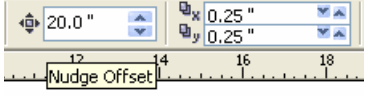 |
| Figure showing Nudge Offset value is 20.0" inches |
| |
| The Nudge Offset box defines how far a selected object moves when you "nudge" it by pressing the right, left, up, or down arrows on your keyboard. If you set the distance to 1", for example, you can choose any object with the Pick tool, press the down arrow on your keyboard, and that object moves one inch down. Exactly. Custom-defined nudge offsets can be a big time-saver. One scenario is that you have four rectangles sitting on top of each other and you want to space them one inch apart. A custom-defined nudge value makes this as easy as pressing the right arrow one, two, three, or four times. |
| |
| The Duplicate Distance value boxes define how much offset will be applied to a selected object when you duplicate it by pressing Ctrl+D, or by choosing Edit | Duplicate from the menu bar. |
| |
| With an object selected, you can move or nudge it in increments by tapping the arrow keys. To adjust the distance that the object is moved when you tap the arrow keys, look for the Nudge Offset dialog box on the property bar and type in a value. |
| |
| Guidelines Setup |
| |
| The very good use of nudge offset button is setting guidelines. |
| |
| An example here will explain how you can set guidelines. |
| |
| . Open Coreldraw |
| |
| . Select Pick Tool |
| |
| . Place it on the ruler and drag down |
| |
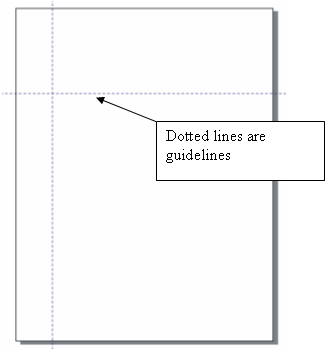
| . Drag the pointer down. It will bring the dotted line on the page called Guideline. |
| |
| An image showing guidelines is given below: |
| |
 |
| |
| . Now, type 5 in nudge offset button in property bar. |
| |
| . Select vertical guideline and press + key. Duplicate guideline will be drawn overlapping other guideline. |
| |
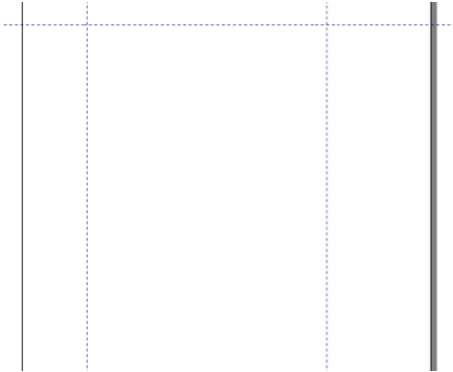
| . Now click Right Arrow to move. It will move at the 5 inches distance, because you had assigned 5 inches in nudge offset box as shown in figure below: |
| |
 |
| |
| Figure showing 5 inches distance between two vertical guidelines. |
| |
| In the same manner you can adjust the distance between two or more objects by assigning the value in nudge offset button in property bar. |
| |
| Note: No object should be in selection for assigning the value in nudge offset, because nudge offset button is not highlighted during the selection of any object. |
| |
| |
|
| |


