| Tips and Tricks in CorelDraw |
| |
| Tracing of Logo |
| |
| Tracing of Company Logo is very important task in designing. Imagine you have given any company logo and asked to draw it as same as it looks. What will you do to draw it. It is very tough to draw seeing it and drawing. After thousands of trails you cannot draw it same. For this you should trace the logo. |
| |
| How to Trace Logo? |
| |
| Now the question arises how to trace logo. First you should scan the logo or import it if it is located anywhere in your computer. |
| |
| This is explained in the example below step by step: |
| |
| . Import Logo by clicking on import button of property bar or go to File>Import. |
| |
| . Click on the drawing page and place your logo as shown below. |
| |
 |
| |
| . Select Zoom Tool and zoom in your image as close as you get the image visible. |
| |
| . Type "eBiz" with red color and place it on the logo overlapping as shown in figure below: |
| |
 |
| |
| . Select Text and give font type to Times New Roman." |
| |
| . Type "com" and place on logo as shown in figure below: |
| |
 |
| |
| . Pick Selection Tool and drag the text "com" so as to make it smaller as in logo. |
| |
| . Now your image should look like this as shown below: |
| |
 |
| |
| . Now select rectangle tool and draw rectangle. |
| |
| . Place rectangle on the left side of the logo. |
| |
| . Pick Selection Tool and drag the rectangle so as to make it smaller as it is in logo. |
| |
| . Right click and select red color from the color palette. |
| |
| . Your drawing page should look like this as shown below: |
| |
 |
| |
| . Draw another rectangle and place it on right side of the logo. |
| |
| . Draw another rectangle and place on the bottom of logo. |
| |
| Now it's time to select bazier tool to trace logo. |
| |
| . Click on Bazier Tool. |
| |
| . Start drawing lines around the shape of logo. |
| |
| . After drawing lines your drawing page would look like as shown in figure below: |
| |
 |
| |
| . Click on shape tool. |
 |
|
| |
| . Select lines and click on convert to curve button on the property bar. |
 |
|
| |
| . Now start making curves of these straight lines. |
| |
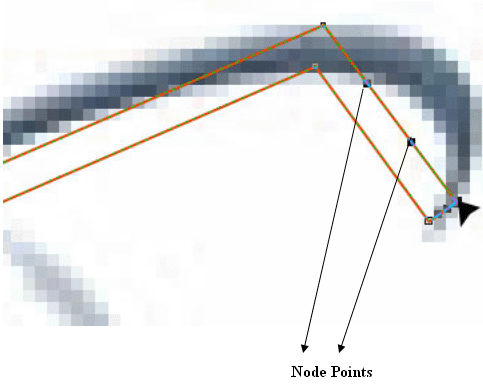
| . Click on any node of the lines. You will notice node points on the lines as shown in figure below: |
| |
 |
| |
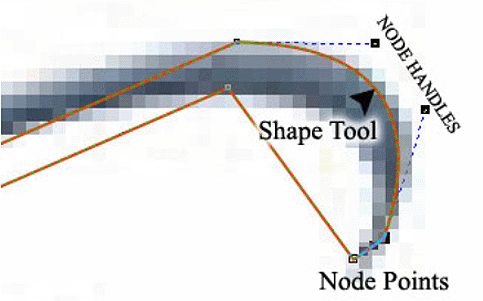
| . Drag lines from middle as long as you get the desired shape as shown in figure below: |
| |
 |
| |
| . Repeat these actions on every line. |
| |
| . Adjust curves with node handles as long as you get the desired logo shape. |
| |
| . Now for drawing globe Select Ellipse tool and draw circle on it. |
| |
| . Drag it as long as you get the size as it is in logo. |
| |
| . Draw map on logo using the same bazier and shape tool. |
| |
| . Make curves using shape tool. Adjust with the handles as long you get the shape of map on the globe. |
| |
| . Type Pvt. in the left rectangle of logo. |
| |
| . Color text with white fill and black outline. |
| |
| . Click Shape tool and select text. |
| |
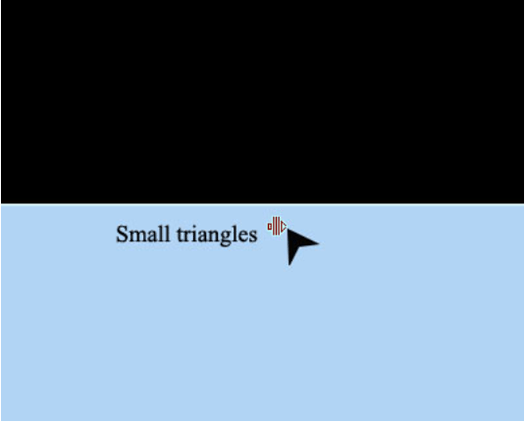
| . Small triangle will occur on the right and bottom of the text. |
| |
| . Press Alt key and drag on the right direction as shown in the figure below: |
| |
 |
| |
| Figure: You can see triangles when you select shape tool and click on text. Drag them right for giving the distance between characters. |
| |
| . Now type other texts as in the logo and repeat the actions. |
| |
| . Separate original image from the drawing image. Now your drawing image would look like this. |
| |
 |
| Original Image |
Tracing image |
|
| |
| Figure showing original logo and trace logo. |
| |
| Now, color the trace logo as in the original logo. |
| |
| Your final stage would look like this. |
| |
 |
| original logo |
traced logo |
|
| |
| Fig. You can see the quality of traced logo is better than the original image.
This is because the original image is raster graphic and traced image in vector graphics. |
| |
| |
|
| |


