| Effects on objects |
| |
| Creating Drop Shadow |
| |
| . Click the Interactive Drop Shadow Tool. |
 |
|
| |
| . Drag on the object. |
| |
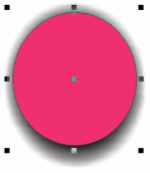
| . You will find a drop shadow behind object as shown below. |
| |
 |
| |
| . When you add a drop shadow, you can change its perspective, and you can adjust attributes such as color, opacity, fade level, angle, and feathering. |
| |
| To change or to adjust drop shadow |
| |
| . Select object. |
| |
| . Click on Interactive Drop Shadow Tool. |
| |
| . Do any of the following adjustments on the property bar. |
| |
 |
Drop Shadow Angle contoller box: For adjusting angle of drop |
| |
|
 |
Drop Shadow Opacity contoller box: For adjusting the opacity of drop shadow. |
| |
|
 |
Drop Shadow Feather contoller box: For adjusting the feather of drop shadow. |
| |
|
 |
Drop Shadow Feather direction button: For adjusting the direction of drop shadow feather. |
| |
|
 |
Drop Shadow Fade contoller box: For adjusting the fade of drop shadow. |
|
| |
| |
|
| |


