| Working with various Objects & Shapes |
| |
| Aligning of Objects |
| |
| When selected, every object has handles that surround it. The handles also serve another purpose-they make an invisible rectangular boundary around objects. This boundary is used when aligning objects. When objects are aligned, they are lined up using a common boundary or page edge. For instance, if two objects are aligned on the left, the objects are aligned using each invisible left boundary. |
| |
| To align objects: |
| |
| 1. Select two or more objects as shown below. |
| |
 |
| |
| 2. Choose Arrange > Align and Distribute or click the Align and Distribute button at the right end of the property bar. |
| |
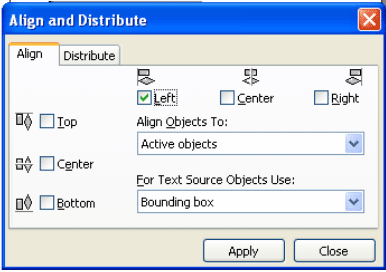
| The Align and Distribute dialog box appears as shown below: |
| |
 |
| |
| 3. Select the type of alignment you want: horizontal or vertical. You can align the objects in two dimensions simultaneously or in just one dimension. |
| |
| 4. To accept the alignment, click Apply. If you aren't satisfied, click Reset and try again. |
| |
| Shortcut keys -Align and Distribute: |
| |
| Align Left |
L |
| |
|
| Align Right |
R |
| |
|
| Align Top |
T |
| |
|
| Align Bottom |
B |
| |
|
| Align Center Horizontally |
E |
| |
|
| Align Center Vertically |
C |
|
| |
| |
|
| |


