| Working with various Objects & Shapes |
| |
| Powerclip on Object |
| |
| A container in CorelDRAW can be any object - for example, artistic text or a rectangle. When you place an object into a container that is larger than the container, the object, called the content, is cropped to fit the form of the container. This creates a PowerClip object. |
| |
| Applying PowerClips |
| |
| PowerClips place a selected object inside another object. The object that is inserted into another object is placed in what CorelDRAW calls a container. The source for the container can be a closed path, a shape, or artistic text (but not paragraph text). |
| |
| PowerClips do not change the size of either the container object or the target object. So if you copy a large object into a small one, it will get cropped to fit the size of the target object. If you copy a small object into a large object, it will not fill the target object completely. |
| |
| You apply a PowerClip by first creating the container object. Fill that object. Edit it. Touch it up, keeping in mind that you're about to use it to fill another object. Then create the object into which you will inject the PowerClip. |
| |
| . Select both rectangle and circle |
| |
| With both the container and target objects created, select the container object with the Pick tool. Choose Effects | PowerClip | Place Inside Container. As soon as you do, a large black arrow appears on your screen. Point that arrow at the target for the PowerClip and click. The container object gets injected into the target object. |
| |
| Insert a PowerClip into Artistic Text |
| |
| . Use your artistic skills to create pattern that looks attractive. Make the pattern wider than your Drawing page (the shaded page area in the Drawing window). |
| |
| . Use your artistic skills to create pattern that looks attractive. Make the pattern wider than your Drawing page (the shaded page area in the Drawing window). |
| |
| If you want to select multiple objects Press Shift key and press on the objects you want to select. |
| |
 |
| |
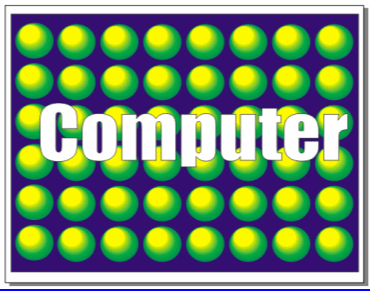
| By making my container object (Computer) wider than the text, ensure that the entire text object will be filled when you use the computer text as a container. |
| |
| . Use the Pick tool to select the computer. |
| |
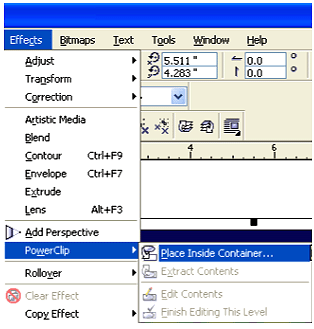
| . Select Effects | PowerClip | Place Inside Container from the menu bar. |
| |
 |
| |
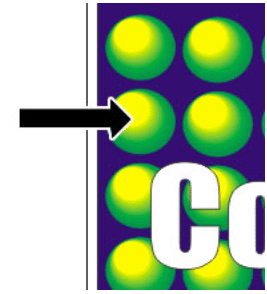
| . Point the new, thick black arrow cursor at the text, as you can see in figure below: |
| |
 |
| |
| You can edit the contents of a PowerClip by clicking on the (combined) object and selecting Effects | PowerClip | Edit Contents. After you edit the PowerClip container contents, choose Effects | PowerClip | Finish Editing This Level to place the container object back into the target object. |
| |
| The final image would look like as shown in figure below: |
| |
 |
| |
|
| |


