| Working with various Objects & Shapes |
| |
| Transformation of an object. |
| |
| Transforming of objects means positioning, resizing, rotation, scaling and distortion of object. |
| |
| Transformation of object is done by Pick Tool itself. By selecting an object with Pick tool you can resize it, rotate it and can distort object. |
| |
| Here is an example which will explain the transformation of object with Pick tool. |
| |
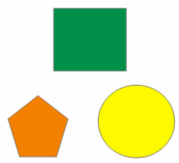
| Open any drawing |
| |
 |
| |
| . Select both rectangle and circle |
| |
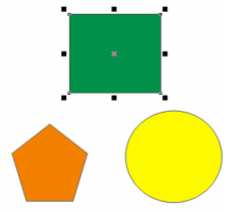
| For selecting one single object: For selecting one single object click on that object with pick tool. For example if you want to select rectangle click on rectangle with pick tool. |
| |
 |
| |
| Above you can see the anchor points only on rectangle . It means the rectangle is selected. |
| |
| For selecting multiple objects: |
| |
| If you want to select multiple objects Press Shift key and press on the objects you want to select. |
| |
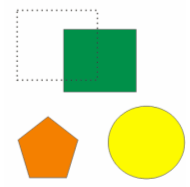
| You can also select multiple objects by dragging marquee around the objects as shown below. |
| |
 |
| |
| For rotating and skewing objects: |
| |
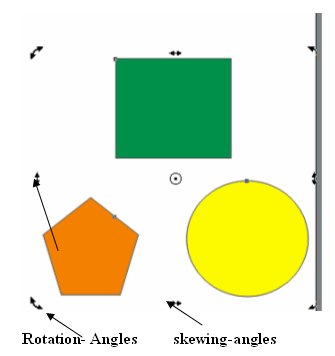
| If you want to rotate object double-click the mouse. Rotation anchor points occur on your screen as given below: |
| |
 |
| |
| You can see the rotation angles on the left and right of the figure shown above. These angles are for rotating objects.You can also see the skewing angles in the center of the figure shown above. These angles are for skewing objects. |
| |
| Besides this for Transformation of objects you can go to Arrange Menu and click on Transformation. |
| |
| For positioning: |
| |
| . Select an object. |
| |
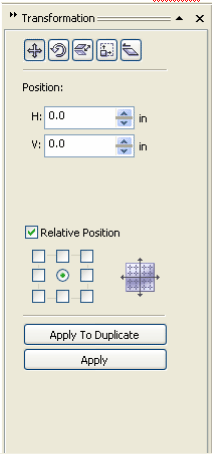
| . Transformation Docker will occur on your screen: |
| |
 |
| |
| . Disable the Relative position check box. |
| |
| . Type values in the following boxes: |
| |
| . H - lets you specify a value for the horizontal position of an object |
| |
| . V - lets you specify a value for the vertical position of an object |
| |
| . Enable the check box that corresponds to the anchor point that you want to set. |
| |
| . Click Apply. |
| |
| Note: If you enable the Relative position check box on the Transformations docker, the H and V boxes identify the position of the center anchor point as 0,0. On specifying different values in the H and V boxes, the values represent a change from the object's current position as measured from the center anchor point. |
| |
| Rotation: To give rotation to the object one should use rotation command. |
| |
| For rotation: |
| |
| . Select an object. |
| |
| . Click>Arrange>Transformations>Rotation or Click Alt+F8 |
| |
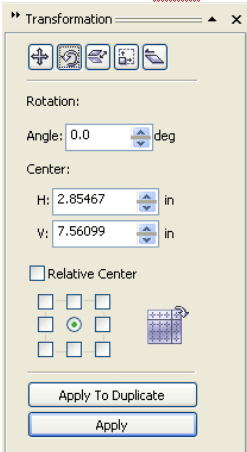
| . Transformation Docker will occur on your screen: |
| |
 |
| |
| . Type the value in the angle box |
| |
| . Type values in the H and V boxes to specify the horizontal and vertical positions. |
| |
| . Disable the Relative center check box. For rotating an object around a point relative to its current position, enable the Relative center check box. |
| |
| . Click on Apply Button. |
| |
| Scale: |
| |
| For increasing or decreasing dimensions of an object in percentage we use scale transformation. |
| |
| For scaling any object: |
| |
| . Select an object. |
| |
| . Click>Arrange>Transformations>Scale or Click Alt+F9 |
| |
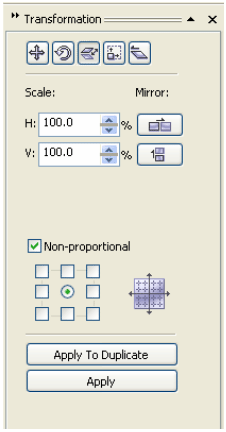
| . Transformation Docker will occur on your screen: |
| |
 |
| |
| . Specify percentage values in the H and V boxes to specify scaling in horizontal and vertical . |
| |
| . Disable the Non-proportional check box, if you want to maintain the aspect ratio. |
| |
| . Click on Apply button. |
| |
| Size: |
| |
| For increasing or decreasing dimensions of an object in size we use size transformation. |
| |
| To change or to give size for an object: |
| |
| . Select an object. |
| |
| . Click>Arrange>Transformations>Size or Click Alt+F10 |
| |
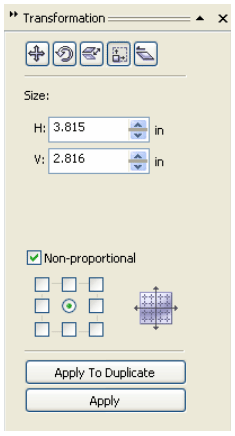
| . Transformation Docker will occur on your screen: |
| |
 |
| |
| . Specify values in the H and V boxes to specify size of object in horizontal and vertical . |
| |
| . Disable the Non-proportional check box, if you want to maintain the aspect ratio. |
| |
| . Click on Apply button. |
| |
| Skew |
| |
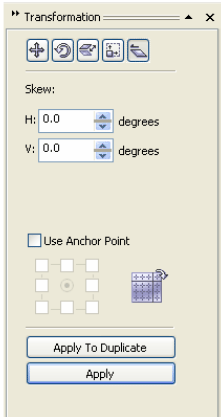
| For skewing an object, you specify the degree by which you want to slant the object. |
| |
| To skew an object: |
| |
| . Select an object. |
| |
| . Click>Arrange>Transformations>Skew |
| |
| . Transformation Docker will occur on your screen: |
| |
 |
| |
| . Specify the number of degrees in the H and V boxes by which you want to skew the object horizontally and vertically. |
| |
| . If you want to change the anchor point of the object, enable Use Anchor Point. |
| |
| To transform the duplicate of an object |
| |
| . Select an object. |
| |
| . Click Arrange >Transformations, and click any of the commands. |
| |
| . Choose the settings you want in the Transformation docker. |
| |
| . Click Apply to duplicate. |
| |
| Clear Transformations: |
| |
| If you want to clear any transformations or effects given in the object Click>Arrange>Clear Transformations |
| |
| |
| |
| |
| |
| |
|
| |


