| Working with various Objects & Shapes |
| |
| Combining of Objects: |
| |
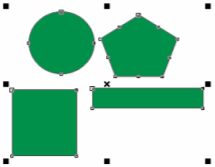
| If you want to convert two or more objects into single object with common fill and outline attributes you can use combine command. You can combine rectangles, ellipses, polygons, stars, spirals, graphs, or text. CorelDRAW converts these objects to a single curve object. |
| |
| For combining objects |
| |
| • Select the objects you want to combine. |
| |
| • Click Arrange>Combine |
| |
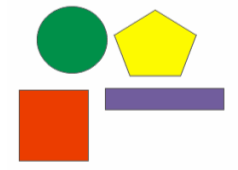
| The result would be as under: |
| |
 |
| |
| Before Combine command |
| |
 |
| |
| After combine command |
| |
| Difference between Combine and Group command |
| |
| An example below will explain the difference between combine and group command. |
| |
| • Draw two circles. |
| |
| • Fill them with fountain fills. |
| |
| • Select both of them. |
| |
| • Go to Arrange > Combine |
| |
| • Both the circles are combined. |
| |
| • Now please carefully observe the fountain fill. |
| |
| • When grouped, the fill are separate with two centers in each rectangle. |
| |
| • After combine command is applied, both the circles are treated as one single object and hence the two fills are turned into one single fountain fill. |
| |
| • This fill has one center and both the circles are treated as big one single circle. |
| |
| • Go to Arrange > Break Curve Apart |
| |
| • The object is separated again and we have two different rectangles with two separate radial fills. |
| |
| |
|
| |


