Trimming of an object
 |
 |
 |
| Working with various Objects & Shapes | |||
Trimming of an object |
|||
| Trimming creates irregularly shaped objects by removing object areas that overlap. The process of trimming depends on what object you select for trim. However, you cannot trim paragraph text, dimension lines, or masters of clones. | |||
| You can trim almost any object, including clones, objects on different layers, and single objects with intersecting lines. | |||
| Example: | |||
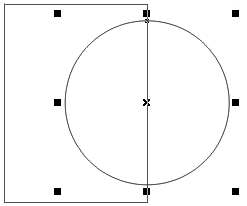
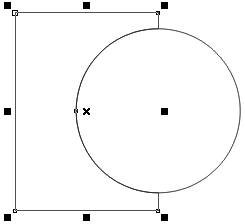
| . Select Rectangle tool and draw a rectangle. Select Ellipse tool and draw the circle so as to overlap the part of the rectangle. Keep the circle selected. | |||
|
|||
| . Go to Arrange > Shaping > Trim | |||
|
|||
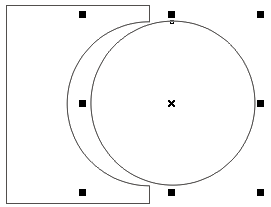
| . The selected rectangle is trimmed; it means the portion of the rectangle is cut in the shape of the overlapped part of the circle. And the source object that is the initially selected circle will also remain intact. | |||
|
|||
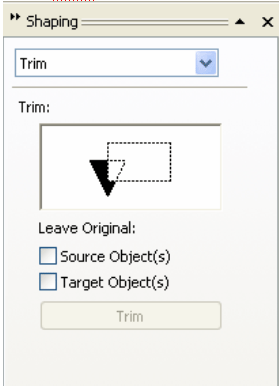
| You can also trim an object by opening the docker window of shaping. | |||
| For Trimming | |||
| . Go to Window>Dockers>Shaping | |||
| . Docker window appear on the application window. | |||
|
|||
| . Select Trim from the list. | |||
| . Select source object | |||
| . Click on Trim button. | |||
| . Arrow will appear on the screen | |||
| . Click on object which you want to trim | |||
|
|||