| Basics of CorelDRAW |
| |
| Working with Grid & Guidelines |
| |
| Importance of Grids and Guidelines in Designing |
| |
| Grids and Guidelines play an important role in designing. Grids helps in drawing objects exactly in the shape you want. Guidelines helps in drawing any image in exact size and shape as per requirement. |
| |
| In this tutorial you will learn about the working of grids and guidelines in CorelDraw. |
| |
| Grids |
| |
| Grid is a series of intersecting lines or dots that you can use to precisely align and position objects in the drawing window. |
| |
| For showing grids on the page |
| |
| Click View>Grid. |
| |
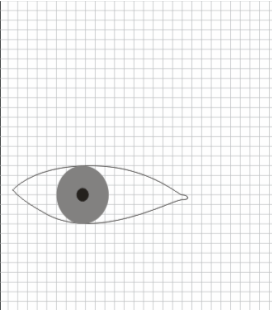
| An intersecting dashed lines will appear on the screen as shown below. |
| |
 |
| |
| Professionally grids are used where complicated artworks like cartoon characters, human organs etc are drawn. |
| |
| For Grid settings |
| |
| . Click View> Grid and Ruler Setup |
| |
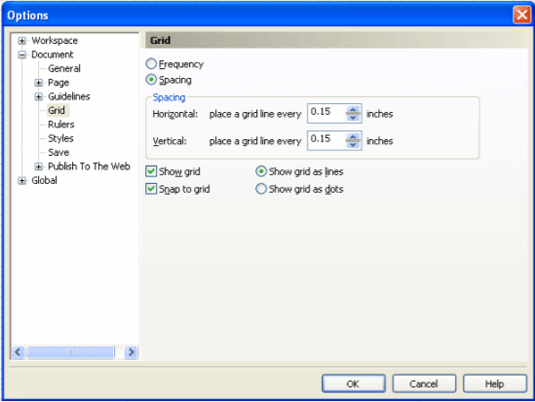
| . A dialog box will appear on the screen as shown below: |
| |
 |
| |
| Click on Grid option on the left of dialog box area |
| |
| Enable any of the following options: |
| |
| . Frequency - specifies grid spacing as the number of lines per unit of measure |
| |
| . Spacing - specifies grid spacing as the distance between each grid line |
| |
| Type values in the following boxes: |
| |
| . Horizontal |
| |
| . Vertical |
| |
| Enable any of the following check boxes: |
| |
| Show grid: For showing grid on screen |
| |
| Snap to grid: For snapping objects to grids |
| |
| Show grid as lines: For showing grids as lines |
| |
| Show grid as dots: For showing grids as dots. |
| |
| Guidelines |
| |
| To display guidelines in document window. |
| |
| . Click>View>Guidelines |
| |
| . Select Pick Tool |
| |
| . Place it on the ruler and drag down |
| |
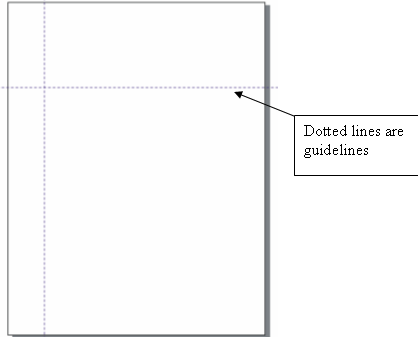
| . Drag the pointer down. It will bring the dotted line on the page called Guideline. |
| |
| An image showing guidelines is given below: |
| |
 |
| |
| Note: A check mark beside the Guidelines command indicates that the guidelines are displayed. |
| |
| For adding horizontal and vertical guidelines. |
| |
| Click View>Guidelines Setup |
| |
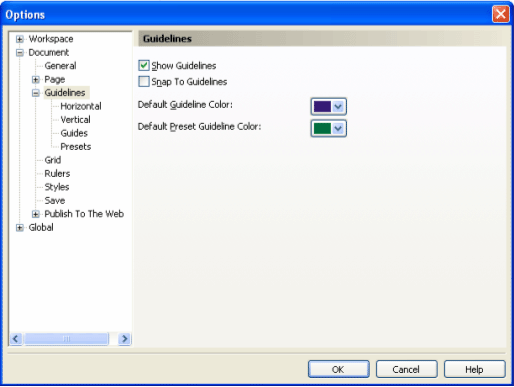
| A dialog box will appear on the screen as shown below: |
| |
 |
| |
| . Set the default Guideline Color you like |
| |
| . To snap objects to guideline enable Snap to Guidelines checkbox. |
| |
| . In the document list of categories, click one of the following: |
| |
| . Horizontal |
| |
| . Vertical |
| |
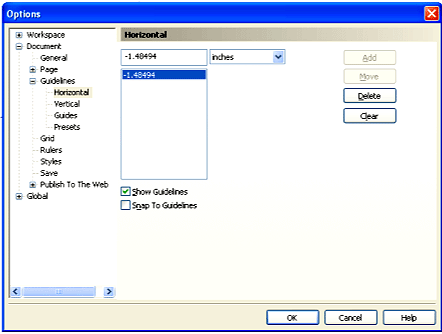
| Following dialog box will appear on the screen after clicking on horizontal or vertical option. |
| |
 |
| |
| . Click Add |
| |
| . Click Ok after adding values of guidelines |
| |
| Snap to Guideline: |
| |
| To activate guideline snapping, choose View/Snap to Guidelines or click the Snap to Guidelines button on the Property Bar (shown next). Guidelines are created by dragging from your vertical or horizontal rulers (they can also be slanted), or by using Presets with automated scripts in the Guidelines Presets page of the Options dialog box. |
| |
 |
| |
| Snap to Objects - To have your objects or cursors snap to and align with other objects, choose View/Snap to Objects; press Alt+Z; or click the Snap to Objects button on the Property Bar (shown next). You can set snap points using new snap modes option in the Snap to Objects page of the Options dialog box. |
| |
 |
| |
| Dynamic Guides |
| |
| Dynamic guides are temporary guidelines that you can pull from the following snap points in objects - center, node, quadrant, and text baseline. |
| |
| Typical Guidelines physically occupy a point on your document page whereas dynamic Guides appear only momentarily right where you need them. |
| |
| For making dynamic guides active: |
| |
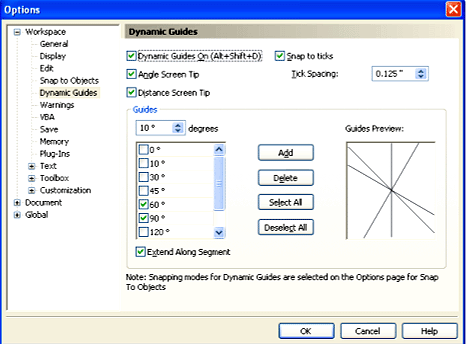
| Click View> Dynamic Guides or press Alt+Shift+D. |
| |
| A dialog box will appear on the screen as shown below: |
| |
 |
| |
| . Make sure the Angle and Distance Screen Tip options are selected and Click OK. |
| |
| . Draw a simple rectangle with the Rectangle tool (F6). |
| |
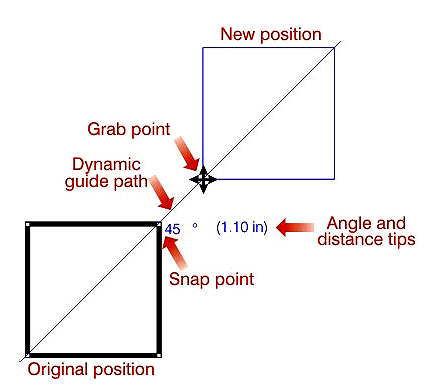
| . Choose the Pick tool, then grab the lower-left corner node of the rectangle and drag it in a circular motion around its original position. Notice as you do this that guide paths, and angle and distance values appear around the rectangle. |
| |
| . What you see on your screen will look something like this: |
| |
 |
| |
| |
|
| |


