| Basics of CorelDRAW |
| |
| Adding Text To Document: |
| |
| In this tutorial we are trying to explain how to add text to your document in coreldraw. |
| |
| To add any text to document we can import some text from any other application ie Ms Word or Pagemaker. |
| |
| This is explained clearly as under: |
| |
| . Choose File > Import (Ctrl+I) to open the Import dialog box. Use the Browse options to locate and select the text document you want to import, and click OK. |
| |
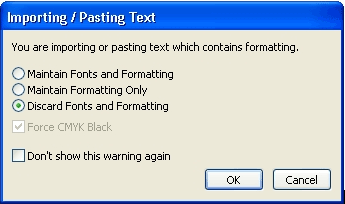
| . In the Importing/Pasting Text dialog box, choose an import preference (shown below). If you choose the Discard Fonts and Formatting option, the imported text will be automatically formatted with the current paragraph text frame style properties. |
| |
 |
| |
| . Click OK to import the text. The imported text will automatically be added at your insertion point and flow with the current text in the frame. |
| |
| Wrapping Text |
| |
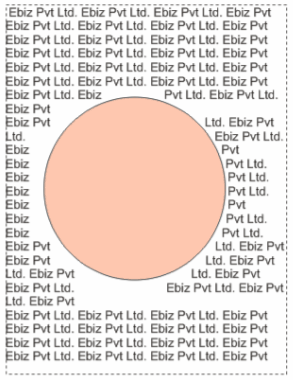
| Applying a CorelDRAW text wrap effect to simple shapes is an easy way to create an interesting flow of paragraph text. The simpler the shape, the less distracting the text wrap will be. The example below shows a typical text wrap around a simple shape. |
| |
 |
| |
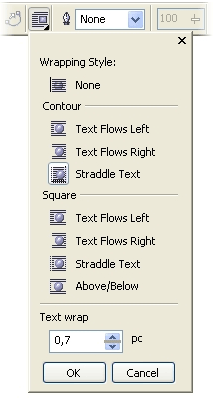
| You can apply a text wrap effect to a shape by right-clicking the shape and choosing Wrap Paragraph Text from the context menu. You can also customize the wrap effect by choosing a different style or changing the text wrap offset value from the Wrap Paragraph Text menu (shown below) on the Property Bar. |
| |
 |
| |
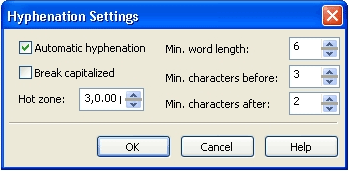
| If your text wrap is difficult to manage because of an awkward shape contour or void, you may need to activate the text hyphenation feature in CorelDRAW. To do this, select your text frame, open the Format Text dialog (Ctrl+T), click the Paragraph tab, click the Hyphenation Settings button, and enable the Automatic Hyphenation option in the dialog that opens (shown below). This dialog also includes options for you to adjust the automatic hyphenation of your text. |
| |
 |
| |
|
| |


