| Basics of CorelDRAW |
| |
| Applying Outline and Fills |
| |
| After drawing or creating any object and shape, the next step is to fill object with some colors and give some colored outlines. |
| |
| This tutorial will explain in detail of how to apply outline and color to objects or shapes. |
| |
| Applying Fill to object |
| |
| A simple example is here explaining how to fill color in object. |
| |
| . Select rectangle tool from the tool box. |
| |
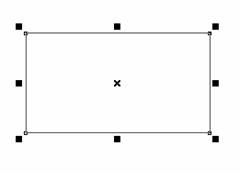
| . Create Rectangle. Keep it selected. |
 |
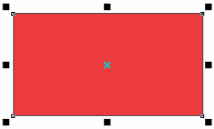
| . Click on any color ie red from the color-tool palate right in the application window. |
| |
| . You will notice a red rectangle. |
| |
 |
| |
| Applying Outline fill to object |
| |
| A simple example is here explaining how to give outline color to object. |
| |
| . Select rectangle tool from the tool box. |
| |
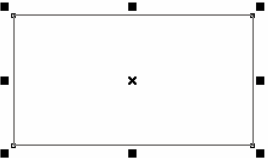
| . Create Rectangle. Keep it selected. |
| |
 |
| |
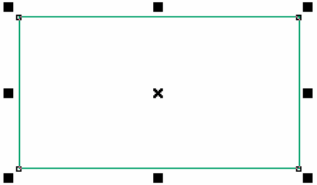
| . Right-click on any color ie Green from the color-tool palate right in the application window. |
| |
| . You will notice a rectangle with green outline color. |
| |
 |
| |
| Increasing the width of outline: |
| |
| Now, you will learn how to increase the width of outline of any object. |
| |
| This is explained in an example below: |
| |
| . Select rectangle tool from the tool box. |
| |
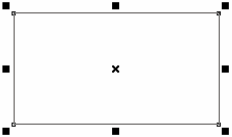
| . Create Rectangle. Keep it selected. |
| |
 |
| |
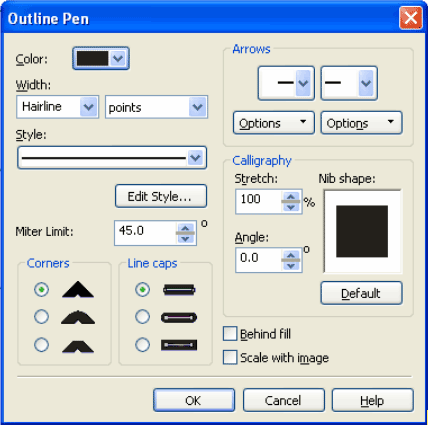
| . Click on Outline Tool . |
| |
| . Dialog-box will appear on your screen as shown below. |
| |
 |
| |
| . Change width of outline to 8-point from width list box on left of the dialog box. |
| |
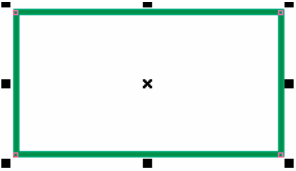
| . The outline of the rectangle becomes thick. |
| |
| . Tryout different thickness available in the outline tool. |
| |
| . This is the image of the rectangle with thick outline. |
| |
 |
| |
| Applying Gradients in Objects: |
| |
| To give some colourful gradients in object coreldraw has provided facility of "Fountain Fill". |
| |
| An example given here explains utility fountain fill. |
| |
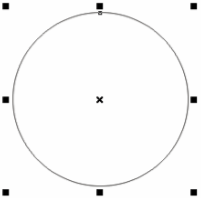
| . Draw circle. Keep it selected. |
| |
 |
| |
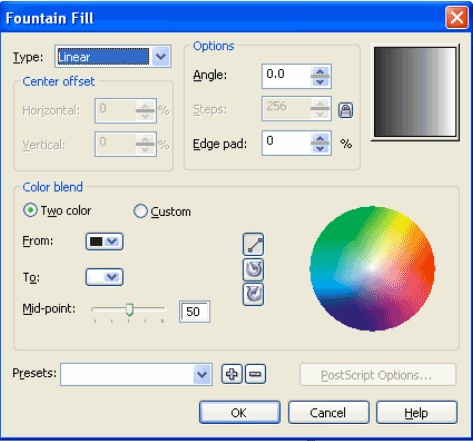
| . Click "Fountain Fill Dialog" from Fill Tool. |
| |
 |
| |
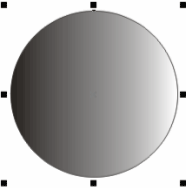
| . Linear fill type is selected by default. Click ok and check out the effect. |
| |
 |
| |
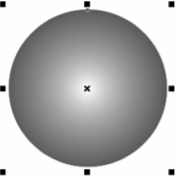
| . Open Fountain Fill again and change Linear Fill type to Radial. Click ok. Observer the result. |
| |
 |
| |
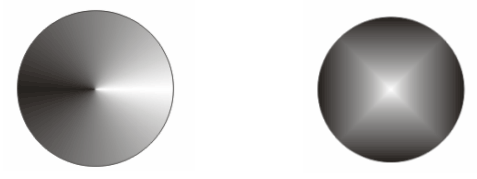
| . Try Conical and Square fill types. |
| |
| . Please do not change any other settings. |
| |
| . This is the image showing different types of fill, in a clockwise manner from top left, they are Linear, Radial, Square and Conical. |
| |
 |
| |
|
| |


