| Getting Started |
| |
| Print Preview |
| |
| Before Printing any drawing or document you can see how it will look after print. |
| |
| This is possible by print preview command. |
| |
| For Print Preview |
| |
| 1. Click on File Menu |
| |
| 2. Select Print Preview from the Dropdown File Menu. |
| |
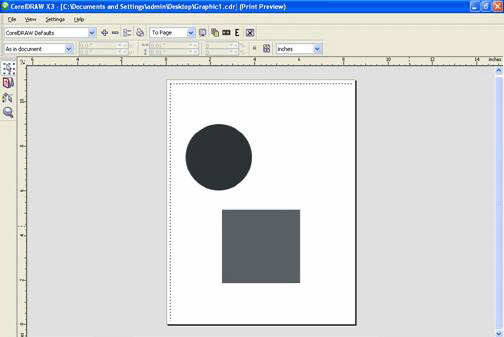
| Following window will appear on your screen |
| |
 |
| |
| When you preview a drawing, only the objects on the drawing page and in the immediate area of the drawing window are displayed, and you can see all layers that are set to print in the Object manager docker. If you want a closer look at specific objects in a drawing, you can select and preview them. When you preview selected objects, the rest of the drawing is hidden. |
| |
|
| |
|
|
| |


