| Getting Started |
| |
| Saving of a Document |
| |
| Save a File |
| |
 |
| |
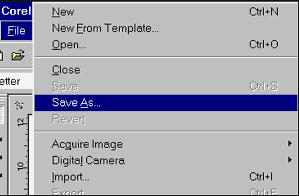
| Choose File> Save As to open the Save Drawing dialog box. One should save the file in the beginning. CorelDraw have an excellent auto-backup system that works with your document name. Saving your empty document before you start working will guarantee you will not lose your work. |
| |
 |
| |
| Set File Location |
| |
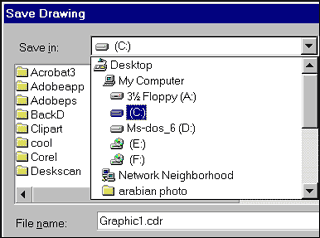
| Choose the location where you would like to save your document from the Save In menu. You can use the New Folder icon to create a new directory from this screen. |
| |
 |
| |
| Name the File |
|
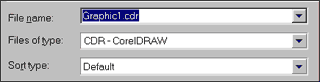
| Type the name for your file in the File Name field. Take care with the names you assign to your files. It is not unusual to want to go back to a file many months later. Choose a name that will easily identify this document. |
| |
|
 |
| |
| Choose File Type |
| |
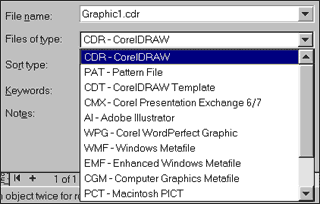
| Leave the default setting at CDR-CorelDraw for most documents. You will be able to open and edit any document saved to this format. If you wish to save an entire document as a different format, use the fly-out to choose your file type. However, to convert objects or documents to another format, it is usually better to use the Export command. |
| |
 |
| |
| Choose CorelDraw Version |
| |
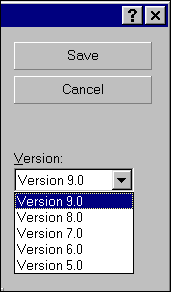
| For most documents, leave the default setting of Version 9. To share files with other users you may have to save your document as an earlier version. CorelDraw 9 will open files saved by an earlier version, but, for example, CorelDraw 7 cannot open a file saved as Version 9. Note: Some effects may be lost if the earlier version does not support the techniques you have used to create your document. |
| |
 |
| |
| Save the File |
| |
| Review all the choices as explained above and choose Save. |
| |
 |
| |
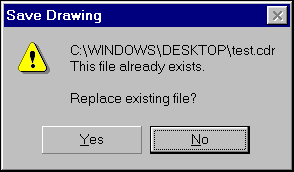
| Choose File, Save or use the shortcut (CTRL+S) to do a mini save of your work as you progress. It best to do a full save with File Save As every 4 or 5 times you do a mini save. Choose File, Save As and the Save Drawing dialog box will be presented. Choose Save and you will be asked if you wish to replace the current file of that name. Choose Yes. |
| |
| Saving selected objects |
| |
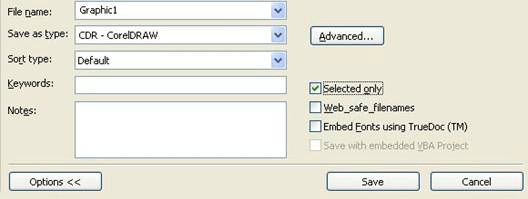
| 1. Select the objects. |
| |
| 2. Click File >Save as. |
| |
| 3. Click Options. |
| |
| 4. Tick on Selected only check box. |
| |
| 5. Locate the folder where you want to save the file. |
| |
| 6. Type a filename in the File name list box. |
| |
| 7. Click Save. |
| |
 |
| |
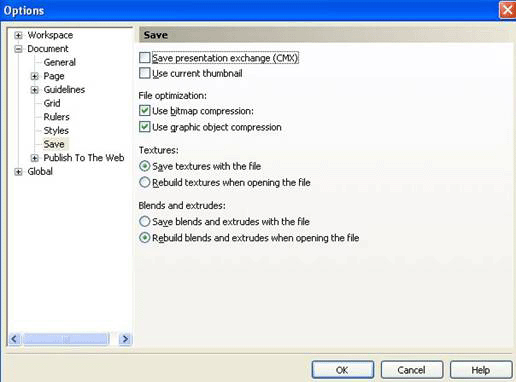
| To use advanced options when saving |
| |
| 1. Click File >Save as. |
| |
| 2. Click Advanced. |
| |
| 3. Enable any of the following check boxes: |
| |
| . Save presentation exchange - saves a drawing as a Corel Presentation Exchange (CMX) file so that you can open and edit it in other Corel applications, such as WordPerfect |
| |
| . Use current thumbnail - preserves the thumbnail format that is currently selected |
| |
| . Use bitmap compression - reduces the file size by compressing bitmap effects, such bitmap extrusions, transparencies, and drop shadows |
| |
| . Use graphic object compression - reduces the file size by compressing vector objects, such as polygons, rectangles, ellipses, and perfect shapes |
| |
| Using compression increases the time for opening and saving a drawing. |
| |
| 4. If a drawing contains texture fills, enable one of the following options: |
| |
| . Save textures with the file - saves custom texture fills with the file |
| |
| . Rebuild textures when opening a file - re-creates texture fills when you open the saved drawing |
| |
| 5. If a drawing contains blends and extrusions, enable one of the following options: |
| |
| . Save blends and extrudes with the file - saves all blends and extrusions included in a drawing |
| |
| . Rebuild blends and extrudes when opening a file - re-creates blends and extrusion when you open the saved drawing |
| |
 |
| |
| |
|
|
| |


