| Getting Started with AutoCAD |
| |
| Object Properties |
| |
| Now that you have learned how to draw objects and modify them using special commands, you need to know one more way changing the properties of an object. For instance, you may have made a spelling mistake in your text. You could erase it and re-create it, or you could double-click on it and just correct the error. This process is an extremely important tool to help you with your CAD work. |
| |
| DON'T REDRAW AN OBJECT - CHANGE ITS PROPERTIES |
| |
| There are a few ways to change, or view an objects properties. First is by using the PROPERTIES command. |
| |
| Command |
Keystroke |
Icon |
Menu |
Result |
| Properties |
PROPERTIES |
 |
Modify > Properties |
Displays the properties of the object in the Properties Palette |
| Match Properties |
MATCHPROP |

|
Modify > Match Properties |
Copies the properties from one object to another |
|
| |
| The method is quite easy and also the most complete way of viewing properties. |
| |
| Draw a line from (any point) to (any point) and press (ENTER). This is only time I will not tell you to use specific co-ordinates. :) |
| |
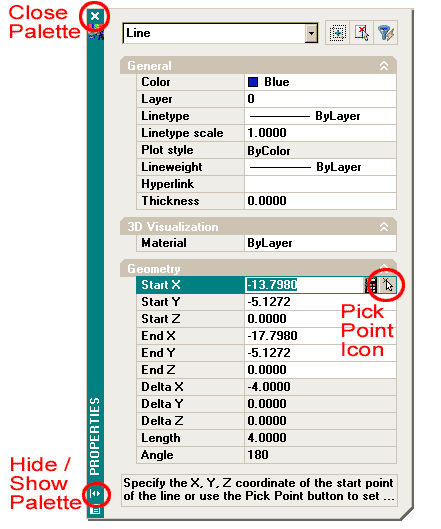
| Now select the object by clicking on it and pick the properties icon. Once you do this, you should see the properties palette appear showing everything that makes that line what it is. |
| |
 |
| |
| What you see here is the complete palette. Before you look at the properties, take a moment to examine the palette itself. These are new to later versions of AutoCAD. Since it takes up a large amount of the screen, you have the option to either close it completely ('X' at the top) or collapse or hide the palette (arrows at bottom) for future reference. |
| |
| Now look at the properties as displayed in the palette. You will see that one endpoint of the line is shown as the "Start X" and "Start Y" points (X,Y point). If you want to change the location of the X co-ordinate for the Start point, pick in the text area, type a number and press (ENTER). You also have the option of picking new X co-ordinate with the small icon shown above. |
| |
| Have good look at the palette. Erase the first line, draw another line and then display the new line's properties. You should see different numbers. |
| |
| Now erase the line and draw a circle. Display the properties and you will see different fields. You will see that the the Start X point has been changed to "Center X". The properties displayed are specific to the object you have selected. |
| |
| Now draw a line next to the circle. Select both by clicking on one, and then the other. Now display the properties by selecting the icon. You will now see a much short list of properties. This short list will include properties that are common to both objects, such as layer, color, etc. |
| |
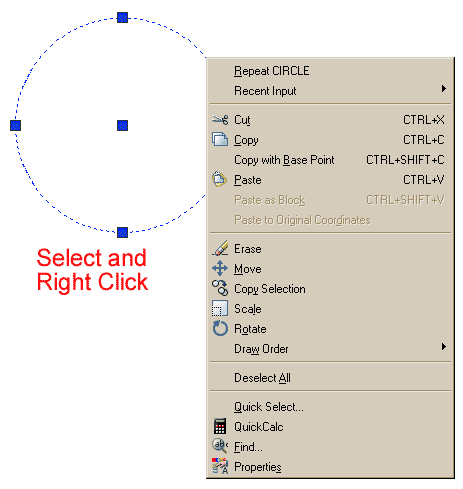
| Now try something different. Erase everything and close the Properties palette. Draw a circle and then select it. Right click on the screen and choose the Properties option at the bottom of the list as shown below: |
| |
 |
| You'll see the same palette appear - in the same space where you closed it. |
| |
|
| |


