| Getting Started with AutoCAD |
| |
| Object Snap Tracking |
| |
| Now you've just seen how you can find distances from points and measure accurately, but what if you want to find specific points based on previously drawn objects? You can use Osnaps, but they don't always find the point you need. |
| |
| Consider that you want to draw a circle in the middle of a rectangle like the example below: |
| |
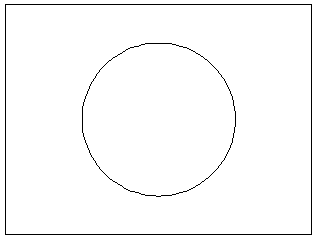 |
| |
| In the olden days, you would have drawn a line from the corners of the rectangle to find the middle, then snapped to the midpoint of that line for the circle's center point, drawn the circle and then erased the reference line. |
| |
| Now you can use object snap tracking. This is a way of finding reference points and drawing from them. To do this exercise, make sure that your Midpoint Osnap is on. |
| |
| Draw a RECTANGLE from 0,0 to 4,3 |
| |
Make sure that the Object Snap Tracking and Osnap button are depressed on the status bar. and Osnap button are depressed on the status bar. |
| |
| Start the CIRCLE command. |
| |
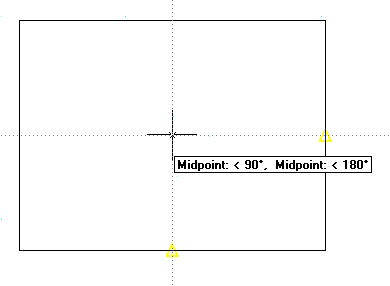
| Move your cursor over the middle of the bottom line of the rectangle. You should see a light dotted line project vertically through your cursor. Now more your cursor to the middle of the right vertical line of the rectangle. As you move your cursor towards the center of the rectangle, you should see the 2 dotted lines cross. It should look like this: |
| |
 |
| |
| Once you see both lines, you can pick and the center point will be exact center of the rectangle. Give your circle a radius of 1". |
| |
| This is a very simple example, but as you start drawing more complex shapes, this will be a handy to tool to master. Object tracking will work with any Osnap that is invoked. But always check to make sure that you are picking the point you want. |
| |
| To review, AutoCAD provides some nice tools to enhance your productivity. Use them, master them, but don't forget the basic of inputting points. Especially when you do 3D work, manual entry becomes valuable. |
| |
|
| |


