| Reports |
| |
| Report Using the Wizard |
| |
| Reports will organize and group the
information in a table or query and provide a way to
print the data in a database. |
| |
| Create a report using Access' wizard by following these steps: |
| 1. Double-click the "Create report by using wizard"
option on the Reports Database Window. |
| |
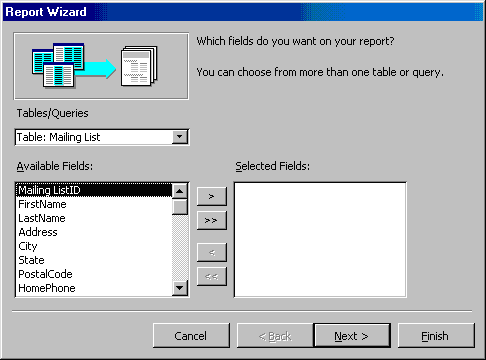
| Select the information source for the report by selecting
a table or query from the Tables/Queries drop-down menu. Then, select
the fields that should be displayed in the report by transferring them
from the Available Fields menu to the Selected Fields window using the
single right arrow button > to move fields one at a time or the double
arrow button >> to move all of the fields at once. Click the Next > button
to move to the next screen. |
| |
|
| |
| |
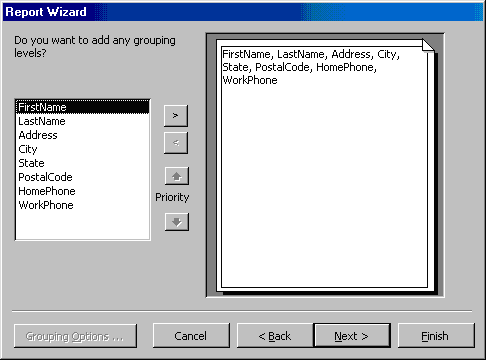
| Select fields from the list that the records should be
grouped by and click the right arrow button > to add those fields
to the diagram. Use the Priority buttons to change the order of
the grouped fields if more than one field is selected.
Click Next > to continue |
| |
|
| |
| |
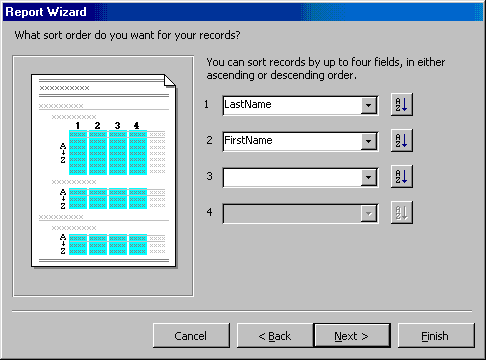
| If the records should be sorted, identify a sort order here.
Select the first field that records should be sorted by and click the A-Z sort button to choose from ascending or descending order.
Click Next > to continue. |
| |
|
| |
| |
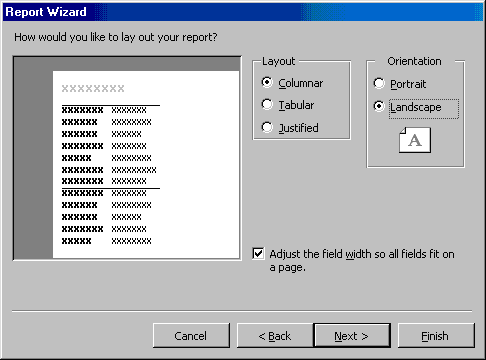
| Select a layout and page orientation for the report and click Next >. |
| |
|
| |
| |
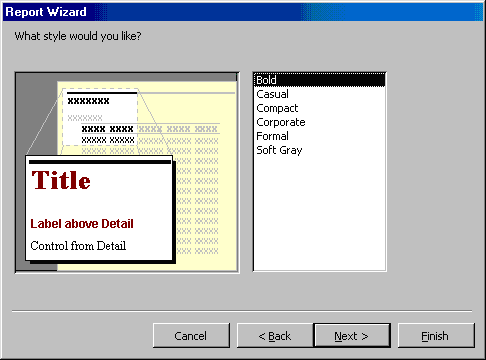
| Select a color and graphics style for the report and click Next >. |
| |
|
| |
| |
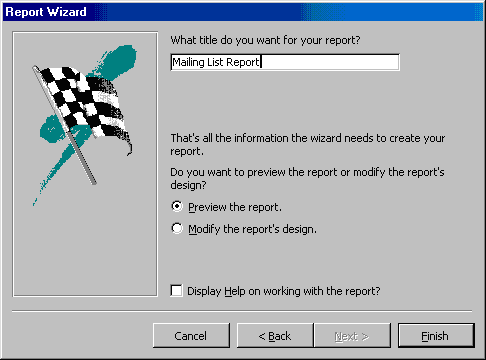
| On the final screen, name the report and select to open
it in either Print Preview or Design View mode. Click the Finishbutton to create the report. |
| |
|
|
Click Here for Animated Tutorial on Create Report by Using Wizard. |
| |
| |
|
| |
| |