| Forms |
| |
| Command Buttons |
| |
| In this example, a command button beside each
record is used to open another form. |
| 1. Open the form in Design View and ensure that
the Control Wizard button on the toolbox is pressed in. |
| |
| 2. Click the command button icon on the toolbox and
draw the button on the form. The Command Button Wizard will then appear. |
| |
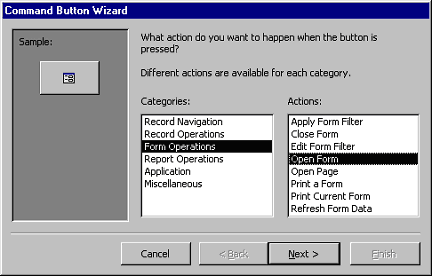
| 3. On the first dialog window, action categories are
displayed in the left list while the right list displays the actions
in each category. Select an action for the command button and click Next >. |
| |
|
| |
| 4. The next few pages of options will vary based on the action you selected.
Continue selecting options for the command button. |
| |
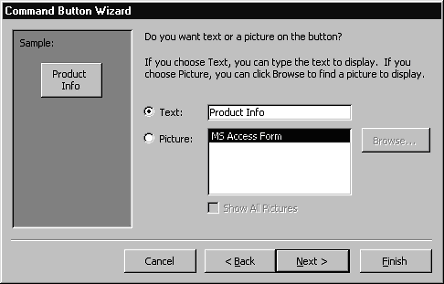
| 5. Choose the appearance of the button by entering
caption text or selecting a picture. Check the Show All Pictures
box to view the full list of available images. Click Next >. |
| |
|
| |
| 6. Enter a name for the command button and click Finish to create the button. |
| |
|
Click Here for Animated Tutorial of How to Work with Form. |
| |
| |
|
| |
| |