| Forms |
| |
| Creating Form by Using Wizard |
| |
| Forms are used as a way to enter data
into a database table. Forms create data in efficient manner. |
| |
| To create a form using the assistance of the wizard, follow these steps: |
| 1. Click the Create
form by using wizard option on the database window. |
| |
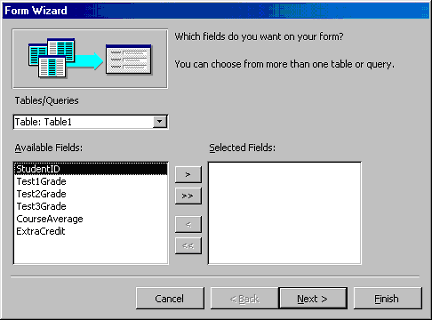
| 2. From the Tables/Queries
drop-down menu, select the
table or query whose datasheet the form will modify. Then, select
the fields that will be included on the form by highlighting each
one the Available Fields window and clicking the single right
arrow button > to move the field to the Selected Fields window.
To move all of the fields to Select Fields, click the double right
arrow button >>. If you make a mistake and would like to remove a
field or all of the fields from the Selected Fields window, click
the left arrow < or left
double arrow << buttons. After the proper fields have been selected,
click the Next > button to move on to the next screen. |
| |
|
| |
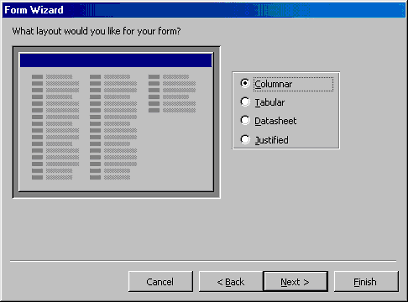
| 3. On the second screen, select the layout of the form. |
| a. Columnar -
A single record is displayed at one time
with labels and form fields listed side-by-side in columns. |
| |
| b. Justified -
A single record is displayed with labels
and form fields are listed across the screen. |
| |
| c. Tabular -
Multiple records are listed on the page
at a time with fields in columns and records in rows. |
| |
| d. Datasheet -
Multiple records are displayed in Datasheet View. |
| |
| Click the Next > button
to move on to the next screen. |
| |
|
| |
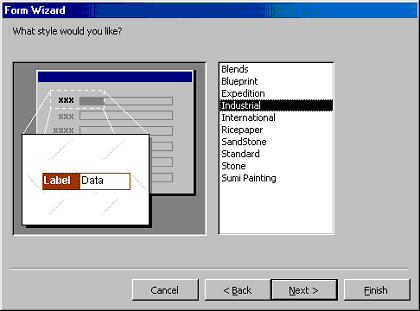
| Select a visual style for the form from the next
set of options and click Next >. |
| |
|
| |
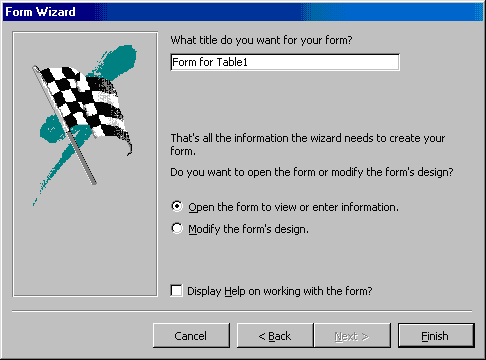
| On the final screen, name the form in the space provided.
Select "Open the form to view or enter information" to open the form
in Form View or "Modify the form's design" to open it in Design View.
Click Finish to create the form |
| |
|
| |
|
Click Here for Animated Tutorial on Create Form by Using Wizard! |
| |
| |
| |
|
| |
| |