| Introduction To Access |
| Â |
| Creating a database using the Database Wizard |
| Â |
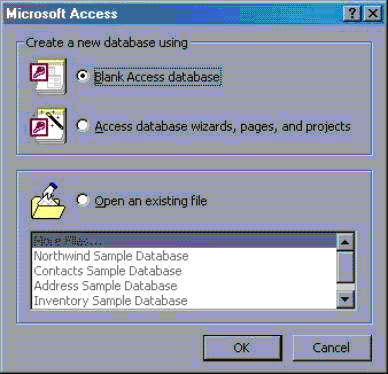
| 1. When Microsoft Access first starts up, a dialog box
is automatically displayed with options to create a new database
or open an existing one. If this dialog box is displayed, click
Access Database Wizards, pages, and projects and then click OK. |
| Â |
| If you have already opened a database or
closed the dialog box that displays when Microsoft Access starts up,
click New Database on the toolbar. |
| Â |
| 2. On the Databases tab, double-click
the icon for the kind of database you want to create. |
| Â |
| 3. Specify a name and location for the database. |
| Â |
| 4. Click Create to start defining your new database |
| Â |
|
| Â |
| Â |
|
| Â |
| Â |