| Mouse actions | Keyboard actions | |
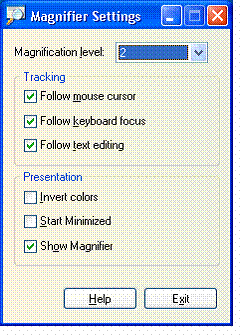
| 1. | On the Start menu: • Point to All Programs. • Point to Accessories. • Point to Accessibility. • Select Magnifier. Notes: A message box with a link to more information about Microsoft Magnifier may appear. To close the box, select OK. To use Magnifier but hide the Magnifier Settings dialog box, select the Minimize button. To turn off Magnifier, in the Magnifier Settings dialog box, select the Exit button. |
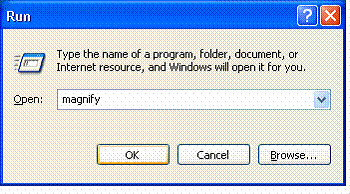
Display the Start menu by pressing CTRL+ESC (or the Windows Key  ). ).• Press R. • Type magnify • Press ENTER. Notes: A message box with a link to more information about Microsoft Magnifier may appear. To close the box, press ENTER. To use Magnifier but hide the Magnifier Settings dialog box, select Minimize by pressing ALT+SPACEBAR, N. To turn off Magnifier, in the Magnifier Settings dialog box, press ALT+X. |
 |
 |
 |