| Menus Action | Keyboard Action | |
| 1. | On the Start menu: • Select Control Panel. |
Display the Start menu by pressing Ctrl+ESC or (the Windows logo key  ) )• Select Control Panel by pressing C. |
| 2. | In Control Panel: • Be sure you are in Classic View (all Control Panel icons are showing). • If not, under Control Panel in the left pane, select Switch to Classic View. • Select Display. |
In Control Panel: • Be sure you are in Classic View (all Control Panel icons are showing). • If not, under Control Panel in the left pane, select Switch to Classic View by pressing TAB. • Press ENTER. • Move to Display by pressing the arrow keys. • Press ENTER. |
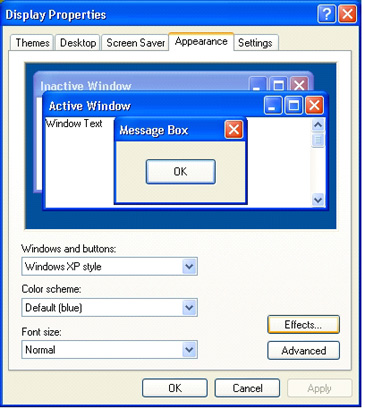
| 3. | In the Display Properties dialog box: • Select the Appearance tab. • Select the Effects button. |
In the Display Properties dialog box: • Move to the Appearance tab by pressing CTRL+TAB. • Select the Effects button by pressing ALT+E. |
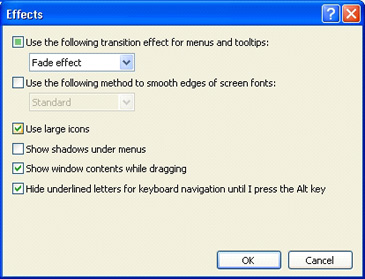
| 4. | In the Effects dialog box: • Select Use large icons. • Select OK twice. |
In the Effects dialog box: • Select Use large icons by pressing E. • Press ENTER. • Move to the OK button by pressing TAB. • Press ENTER. |
| 5. | To close Control Panel: • Select the Close button. |
To close Control Panel: • Press ALT+F, C. |
 |
 |
 |