| Menus Action | Keyboard Action | |
| 1. | On the Start menu: • Point to All Programs. • Point to Accessories. • Point to Accessibility. • Select Accessibility Wizard. |
Display the Start menu by pressing Ctrl+ESC or (the Windows logo key  ) )• Press R. • Type accwiz. • Press ENTER. |
| 2. | In the Welcome to the Accessibility Wizard dialog box: • Select Next. |
In the Welcome to the Accessibility Wizard dialog box: • Press N. |
| 3. | In the Text Size dialog box: • Select the smallest text you can read. • Select Next. |
In the Text Size dialog box: • Select the smallest text you can read by pressing the UP ARROW or DOWN ARROW key. • Press N. |
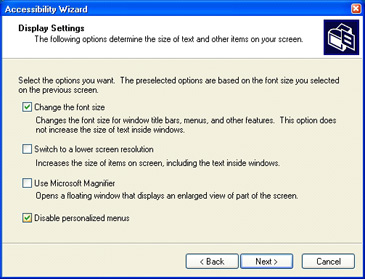
| 4. | In the Display Settings dialog box: • Ensure that the Change the font size check box is selected. • If it is not, select its check box. • If you want to use Microsoft Magnifier, select the Use Microsoft Magnifier check box. • Select Next. |
In the Display Settings dialog box: • Ensure that the Change the font size check box is selected. • If it is not selected, press C. • If you want to use Microsoft Magnifier, press U. • Press N. |
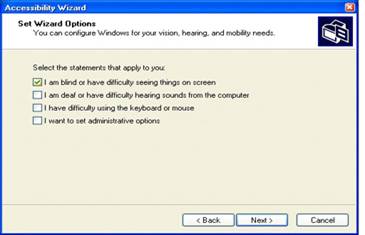
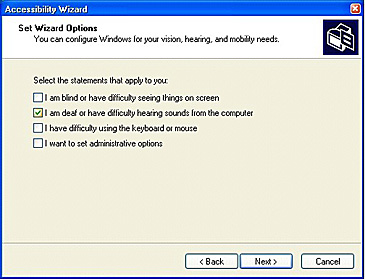
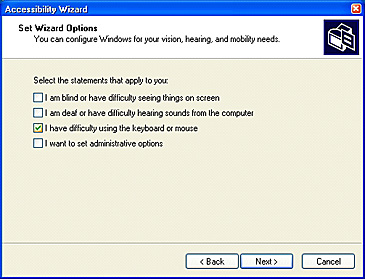
| 5. | In the Set Wizard Options dialog box: • Select the I am blind or have difficulty seeing things on screen check box. • Select Next to continue through the wizard. |
In the Set Wizard Options dialog box: • Select the I am blind or have difficulty seeing things on screen check box by pressing L. • Press N to continue through the wizard (use the arrow keys and ENTER to select the appropriate options). |
| 6. | In the Completing the Accessibility Wizard dialog box: • Select Finish to save your changes and exit the wizard. Note: To cancel your changes, select Cancel, and then select No. • To move back to change earlier screens, select the Back button. |
In the Completing the Accessibility Wizard dialog box: • Press ENTER to save your changes and exit the wizard. Note To cancel your changes, use the TAB key to move to the Cancel button, and then press ENTER. Press TAB to select No, and then press ENTER. • To move back to change earlier screens, press B. |
 |
 |
 |