| Screen Configuration |
| |
| Configuring the Screen |
| |
Configuring the screen is important because sometimes we spend many hours in front of the screen, so we recommend spending a few minutes configuring our desktop so that it can be the most comfortable as possible.
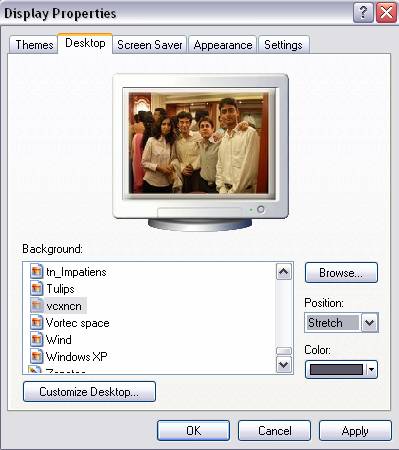
The Display properties window will appear where we can change the configuration parameters.
|
 |
|
| Click with the right mouse button somewhere that has no icons on the desktop and select the option Properties from the shortcut menu that is displayed |
| . |
 |
| |
| The background or wallpaper |
| |
| To change the background or wallpaper, click on the tab labeled Desktop and choose a new background or wallpaper from the list that appears at the bottom left corner. |
| |
| If you are not sure what background goes with what name just highlight the name and a small representation of the background will appear as it would on the screen. |
| |
| Once the background has been selected you can choose how it will appear by clicking on Position. |
| |
| Here are the options: |
| |
| Centered: the image will appear in the center of the screen with its real size. |
| |
| Tile: the image will appear with as many images as necessary to fill the screen. |
| |
| Stretch: the image will appear once taking up the entire screen. |
| |
| It is also possible to have another image that does not appear on the list as background. Click on Browse... and look for the image you want as long as the format is compatible. For example .bmp, .jpg, .gif etc. |
| |
| Once the image and type of view have
been selected, Click OK. |
| |
| These are different different wallpaper category which you can select and set over screen. |
| |
|
| |
| For Animated Presentation to change Background (With Voice) Click Here. |
| For Animated Presentation to change Theme (With Voice) Click Here. |
| |
| |
|
| |
| |