| Windoes AP Explorer |
| |
| Files and Folders Properties |
| |
Both files and folders have their own characteristics, for example size, location, date of creation, attributes, etc
|
 |
| To know the characteristics of a particular file or folder we need to: |
|
| |
| Select it and choose Properties option from File menu. |
| or |
| Click on it with the right mouse button and select the option Properties from the menu that is displayed. |
| |
A window with several tabs will appear. Depending on whether it is a folder or a particular file, the tabs that appear will vary.
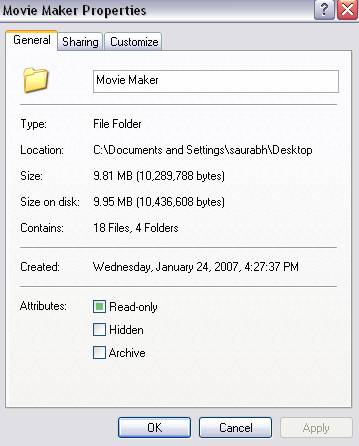
For Example: In the case of a folder the following tabs will appear |
 |
| |
| The tab labelled General contains information on: |
| |
| Type: - Describes which type of element we are dealing with. If it is a file it will also include with which application it opens. |
| |
| Location: Where it is kept. |
| |
| Size: The size both in Megabytes and in bytes; if it is a folder the size will be related to the size of the files it contains. |
| |
| Contains: If it is a folder it indicates the number of files within it. |
| |
| Created: The date in which the folder or file was created. |
| |
| Modified and Last Access: Characteristics of the files, modified saves the date the file was last modified and last access the last time the file was opened regardless of whether changes were made or not. |
| |
| Attributes: These are the attributes that have been assigned to the file or folder. The attribute Read-only allows to only read but not to edit. The attribute Hidden makes the file or folder invisible and the attribute Modified will indicate if it has been modified after its creation. |
| |
| The Sharing Tab contains information on the permission that is given to the other users of the network on our files and folders. |
| |
| |
| Showing hidden files or folders |
| |
| To see all hidden files and folders: |
| |
| Select the Tools menu and then Folder options.. |
| |
| Select the View tab. |
| |
| On the window the option Show hidden files and folders must be checked, if not click on it. |
| |
| Click OK. |
| |
Note: You can also restore the predetermined values by clicking on Reset All folder.
If you want all the folders to have the same appearance you click on Apply to All folders |
| |
| |
| Knowing the types of files |
| |
| To know the type of files registered in the computer and know with which program they open with, simply select the option Folder options... from the Tools menu. |
| |
| Select the tab File types. |
| |
| On the window that appears we have all of the types of files that our computer can open. If we select any of them, the details of the program with which it opens will appear |
| |
| This can be useful, for example to change the program that opens the text documents with a TXT. extension that are normally opened with the Notepad, but it can be more useful to have them open with Microsoft Word or WordPad. |
| |
| |
| Arranging Folders |
| |
| To arrange the files and folders: |
| |
| 1. Place the cursor on the folder you wish to arrange. |
| |
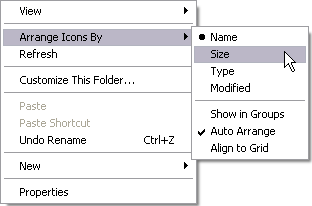
| 2. Display View menu and select the option Arrange icons by. |
| |
| When the menu is displayed, the different ways you can arrange will appear. Select the one you want, for example by size. |
 |
| |
| |
|
| |


