| Desktop |
| |
| Change the Date and Time |
| |
The computer has a clock located on the the right side of the task bar. |
| |
| If you wanted to know the day of the week you would have to place the pointer over the clock and wait a couple of seconds for the complete date to appear. |
| |
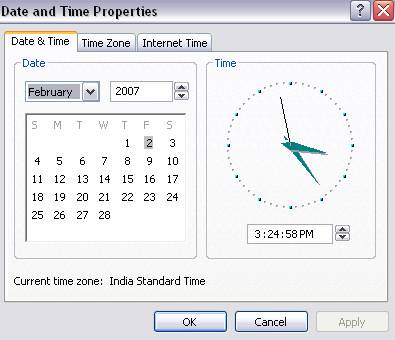
| You can also check and modify the properties of the clock with the dialog box that appears next. It appears as you double-click on the clock on the task bar. |
 |
| |
| To change the Date follow these steps: |
| |
| 1. Double-click on the clock on the task bar to open the dialog box |
| |
| 2. To change the month place the pointer on the month box and click with the mouse on the arrow to the right. A list with the months will be displayed. Select the appropriate month. |
| |
| 3. To change the year place the pointer on the year box and with the arrows you can change the year. |
| |
| 4. To change the day select it on the calendar that appears. |
| |
| 5. Click Apply if you want the change to take effect and remain in the dialog box. |
| Note: Click OK if you want the changes to be permanent and for the dialog box to close. |
| |
| |
| To change the Time do the following: |
| |
| 1. Place the pointer on the clock. |
| |
| 2. To change the time select the time digits with the arrows to the right and adjust to the necessary time. |
| |
| 3. This same process must be done with the minutes and seconds. |
| |
| Hint: You can change the meridian by selecting it on the list of Time Zones. |
| |
| Note: If you click Apply the change will take place and you will remain in the dialog box. If, however, you click on OK, the changes will take effect and the dialog box will close. |
| |
| |
|
| |
| |


