| Introduction to Windows XP |
| |
| Getting Started with Windows XP |
| |
| Now you are going to do the practical work with Windows XP. If you have not done so already, turn on your pc now. |
 |
| |
| The Start |
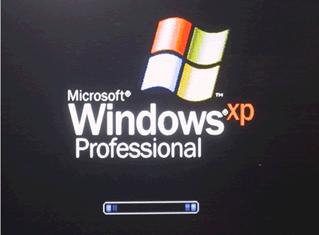
| All programs have to be started; Windows XP is no exception, but it happens automatically. When you turn on power to the pc, it boots, the pc gets ready, and the operating system and its various programs are read in. |
|
 |
|
| |
| Microsoft has done much to optimize the start-up, so ordinarily Windows XP will be ready run in 30 seconds after you turn on power. That is a substantial improvement – especially when compared to Windows 2000 and NT, which could demonstrate a very slow start-up. |
| |
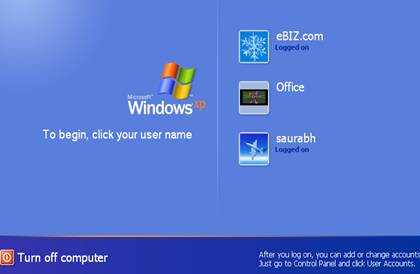
After start-up you usually have to click on a user name, since other users may use the same pc .Once you have logged on; you will get to Windows XP itself. This picture may look slightly different from pc to pc. |
 |
| |
Windows XP gives additional users the option of their individual”log-on”. |
| |
You can create user account yourself in xp. |
| |
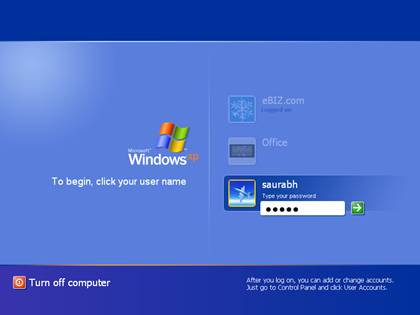
You can also specify password in each account like below. |
| |
 |
| |
| |
| The Start button |
| First we will look at the Start button, which most people are familiar with. |
| |
| The only change in Windows XP is that the button is now green and got a rounded appearance |
 |
| |
To start a program: |
| 1. Click the Start button, located in the lower left corner of your screen. |
| |
| 2. Highlight Programs. The Program menu will appear. |
| |
| 3. Move to the Program menu and highlight the program you want to start. If you see a right pointer next to your selection, a submenu will appear. Refine your choice by highlighting the appropriate selection on the submenu. Continue until you get to the final submenu. |
| |
| 4. Click the program name to start the program. |
| |
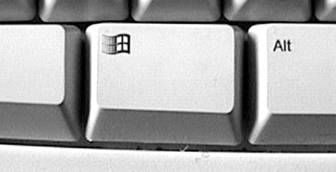
| The start button is your main entry to the pc. A single click on that opens the Start menu, which I will describe here. You can also activate it with the Windows key – I use that often: |
 |
| |
| You can actually operate the Start button in yet other ways. Try to press Control+Escape. Hold the Control key and press the Escape key simultaneously, then the Start menu opens. |
| |
| |
| The Start menu |
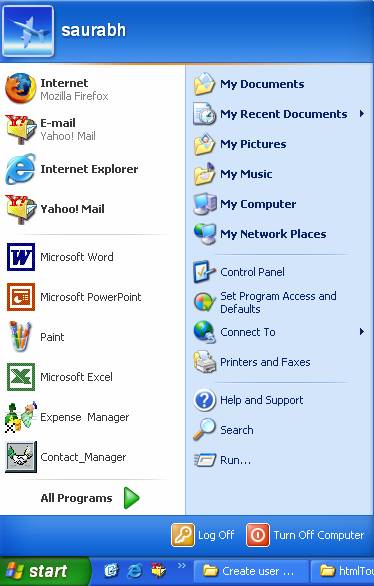
The Start menu has a rather new look in Windows XP, but the structure is about the same as before. |
| |
| You find: |
| . A number of hyperlinks to various programs and functions. |
| |
. An item that opens the sub menu
All programs. |
| |
| . Two buttons in the bottom of the menu, which can be used to change user (Log off) and to close the computer respectively. |
| |
 |
| |
| |
|
| |
| |


