Note: To turn off the underlining, press Ctrl+u again.
Note: To turn off the underlining, click the Underline button again.
 |
 |
 |
| Edit Text of Your Document | |||
| Underline your text | |||
| When you are using Microsoft Word 2007, you can underline your text. Microsoft Word 2007 provides you various types of underlines. | |||
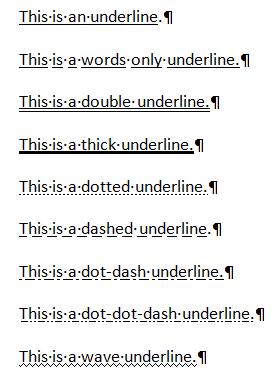
| If you use the dialog box launcher, then following are some of the underlines that are available: | |||
|
|||
| Underline with the Dialog Box Launcher | |||
| The following demonstrate that how can you underlining with the dialog box launcher: | |||
|
|||
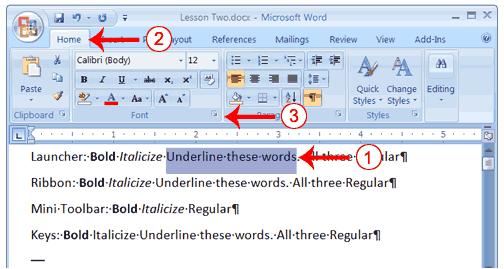
| 1. Select the words "Underline these words", on the line that begins with "Launcher". | |||
| 2. Click on Home tab. | |||
| 3. In the Font group, click the dialog box launcher. The Font dialog box appears. | |||
|
|||
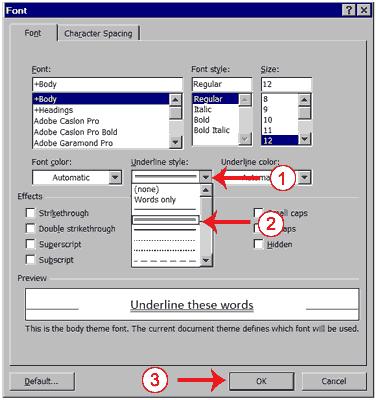
| 4. Click the down arrow to open the pull-down menu, in the Underline Style box. | |||
| 5. Click anyone type of underline you want to use. | |||
| Note: To turn off an underline, you select None from the pull-down menu. | |||
| 6. Click OK to close the dialog box. The underline you selected appears under the words. | |||
| 7. Click anywhere in the text area to remove the highlighting. | |||
| Alternate Method-Underline with Keys | |||
| 1. Select the words "Underline these words", On the line that begins with "Keys". | |||
| 2. Press Ctrl+u (hold down the Ctrl key while pressing u). Note: To turn off the underlining, press Ctrl+u again. |
|||
| 3. Click anywhere in the text area to remove the highlighting. | |||
| Alternate Method-Underline with the Ribbon | |||
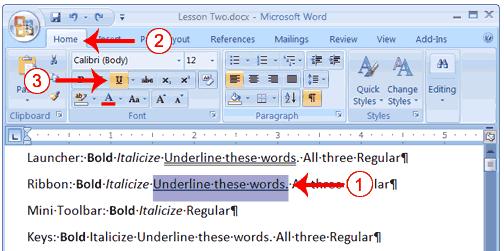
| 1. select the words "Underline these words.", on the line that begins with "Ribbon". | |||
|
|||
| 2. Choose the Home tab. | |||
| 3. Click the Underline button in the Font group . Alternatively, you can press the down arrow next to the underline button and click to choose the type of underline you want. Note: To turn off the underlining, click the Underline button again. |
|||
| 4. Click anywhere in the text area to remove the highlighting. | |||
| For Animated presentation Click here | |||
|
|||