| Edit Text of Your Document |
| |
| Bold your text |
| |
| When you are making a document in Microsoft Word 2007, you might want to highlight exacting words or phrases by bolding. Sometime certain grammatical construct have need of that you bold. You can bold when using Microsoft Word 2007. |
| |
| You can moreover merge this feature. You can also bold a single piece of text. |
| |
| You can usually choose Bold from several methods, when you need to Bold in Microsoft Word. |
| |
| By using the launcher, the Ribbon, the Mini-toolbar/context menu, and the keyboard, you can Bold your text. |
| |
| Bold with the Dialog Box Launcher |
| |
 |
| |
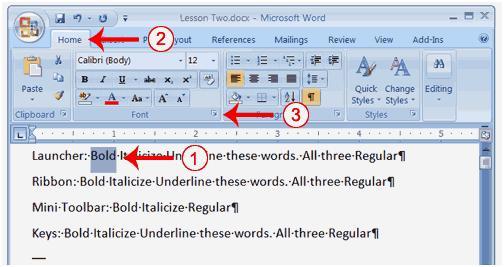
| 1. Select the word "Bold", on the line that begins with Launcher. |
| |
| You can place your cursor before the letter "B" in "Bold." Press the Shift key; then press the right arrow key until the entire word is selected. |
| |
| 2. Choose the Home tab. |
| |
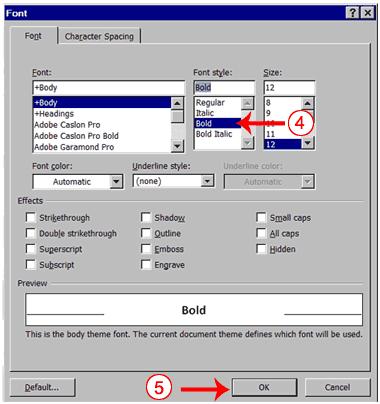
| 3. In the Font group, click the dialog box launcher. The Font dialog box appears. |
| |
 |
| |
| 4. In the Font Style box, Click Bold. |
| |
| Note: You can see this effect of Bold in the Preview window. If you want to remove the bold, Click Regular. |
| |
| 5. To close the dialog box, Click OK. |
| |
| 6. Click anywhere in the text area to remove the selection. You have bolded the word bold. |
| |
| Alternate Method-Bold with Keys |
| |
| 1. On the line that begins with "Keys," select the word "Bold." You can place the cursor before the letter "B" in "Bold." Press the Shift key; then press the right arrow key until the entire word is selected. |
| |
| 2. Press "Ctrl+B" (While pressing the key B, hold down the Ctrl key).
Note: If you want to remove the Bold, press "Ctrl+B" again. You can also remove formatting by pressing "Ctrl+spacebar". |
| |
| 3. Click anywhere in the text area to remove the selection. |
| |
| Alternate Method-Bold with the Ribbon |
| |
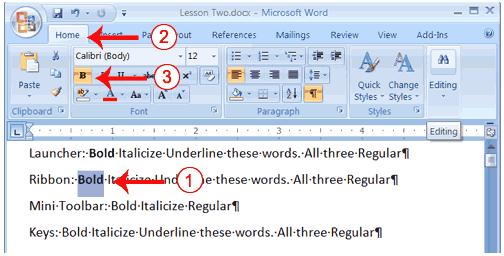
| 1. Select the word "Bold" on the line that begins with "Ribbon" . You can place the cursor before the letter "B" in "Bold". Press the Shift key; then press the right arrow key until the entire word is selected. |
| |
 |
| |
| 2. Choose the Home tab. |
| |
3. Click the Bold button in the Font grouping. You have bolded the word bold.
Note: If you want to remove the bold, you can select the text and then click the Bold button again. |
| |
| 4. Click anywhere in the text area to remove the selection. |
| |
| Alternate Method - Bold with the Mini Toolbar |
| |
 |
| |
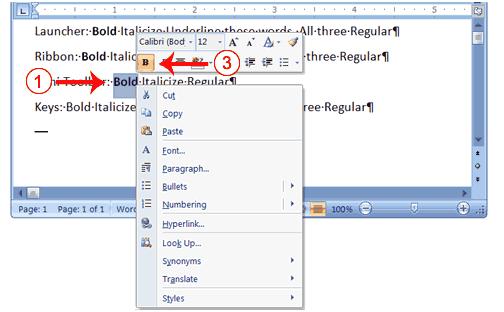
| 1. Select the word "Bold" on the line that begins with "Mini Toolbar". You can place the cursor before the letter "B" in "Bold". Press the Shift key; then press the right arrow key until the entire word is selected. |
| |
| 2. Right-click. The Mini toolbar appears. |
| |
| 3. Click the Bold button . You have bolded the word bold. |
| |
| For Animated presentation Click here |
| |
| |
|
| |


