| Word-2007 Application Window |
| |
| Different View of Document's |
| |
| Document View |
|
| |
| In Word 2007, you can display your document in one of five different views.
These are Print Layout, Reading Layout, Web Layout, Outline View and Draft View. |
| |
| Print Layout |
| |
| Print Layout view shows the document as it will look when it is printed. It includes all tables, text, graphics, and images. |
| |
| Reading Layout |
| |
| Reading Layout view formats your screen to make reading your document more comfortable. Good for viewing two pages at a time. |
| |
| Web Layout |
| |
| Web layout view enables you to view your document as it would appear in a browser. Such as: Internet Explorer. |
| |
| Outline view |
| |
| Outline view displays the document in outline form. |
| Headings can be displayed without the text. If you move a heading, the associated text moves with it. |
| |
| Draft View |
| |
| Draft view is the most often used view. You use Draft view to quickly change your document. |
| |
| You should use Draft view for these lessons. Before moving ahead, make sure you are in Draft view. |
| |
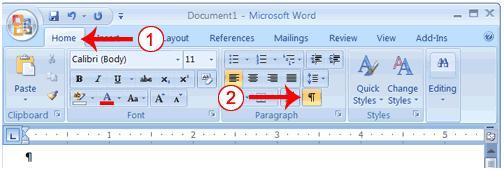
| These are the following Steps to Choose a View: |
| |
 |
| |
| 1. Click the View tab. |
| |
| 2. Click Draft in the Document Views group. When the Draft option is selected it appears in a contrasting color. |
| |
| Understanding Nonprinting Characters |
| |
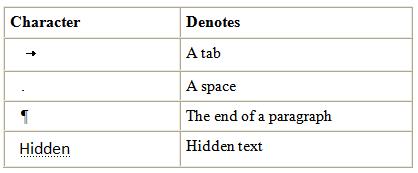
| Certain characters, called nonprinting characters, do not print and will not appear in your printed document but do affect your document layout. You can elect to see these characters on the screen as you type or you can elect to have them remain invisible. For these lessons, opt to see them onscreen. |
| |
| This table describes most of them: |
| |
 |
| |
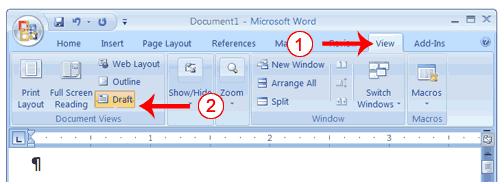
| To view nonprinting characters: |
| |
 |
| |
| 1. Choose the Home tab. |
| |
| 2. Click the Hide /Show button in the Paragraph group. The Hide /Show button appears in a contrasting color, when it is selected. |
|
| |
| For Animated presentation (With Voice)Click here |
| |
| |
|
| |


