| Make a Start with PowerPoint |
| |
| Save a New Presentation |
| |
| If you wish to recall your Presentation later, then you must save your Presentation. |
| |
| You can use the Save option on the Microsoft Office menu, to save a Presentation. |
| |
| You can also save a Presentation by typing "Ctrl+S". |
| |
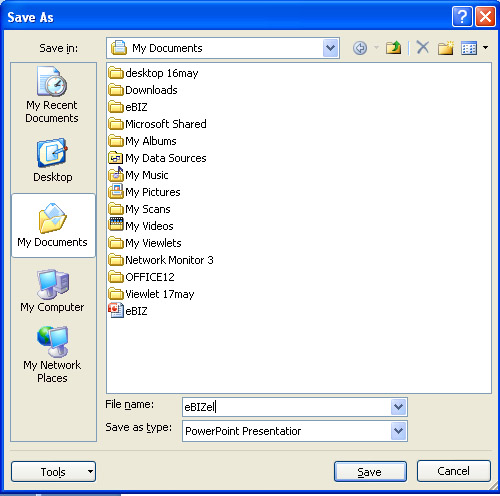
| When you save a Presentation at first time, the "Save As" dialog box appears. Use the "Save As" dialog box to locate the folder in which you want to save your Presentation and to give your Presentation a name. After you have saved your Presentation at least once, you can save any changes you make to your Presentation simply by clicking the Save after you click the Microsoft Office button. |
| |
| The following Steps show you how to save the file you just created. |
| |
| 1. Click the Microsoft Office button. A menu appears. |
| |
| 2. Click on Save. |
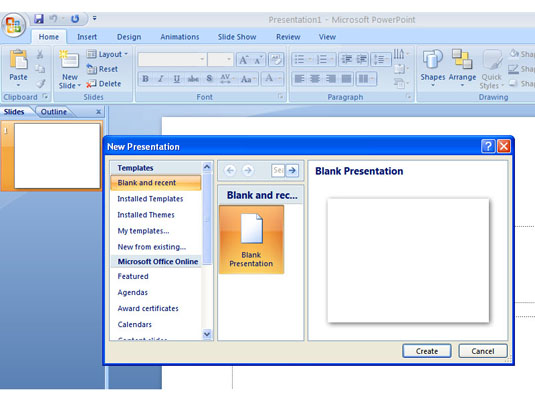
| The Save As dialog box appears if you are saving your Presentation for the first time. |
| |
 |
| |
| 3. Specify the correct folder in the Save In box. |
| |
| 4. Name your document by typing in the File Name box. |
| |
| 5. Click Save. |
| |
 |
| |
| Every time you save your Presentation, you overwrite the previous version of your Presentation.
|
| |
| For Animated presentation Click here |
| |
| |
|
| |


