| Desktop Environments |
| |
| Gnome Desktop Environment |
| |
| GNOME (GNU Network Object Model Environment) is an international effort to build a complete desktop environment—the graphical user interface which sits on top of a computer operating system—entirely from free software. |
| |
| This goal includes creating software development frameworks, selecting application software for the desktop, and working on the programs which manage application launching, file handling, and window and task management. |
| |
| What is Gnome? |
| |
| The GNOME project provides two things: The GNOME desktop environment, an intuitive and attractive desktop for users, and the GNOME development platform, an extensive framework for building applications that integrate into the rest of the desktop. |
| |
| Is that all about Gnome? |
| |
| Surely, no, in fact GNOME is a desktop software project, but it's large enough to mean different things to different people. If you're a software user, it's a desktop and some applications. If you're a software developer, it's a platform, toolkit, and community. |
| |
| The core applications consist of the Nautilus file manager, the panel and its associated gadgets called panel applets, the usual complement of accessories (text editor, terminal emulator, calculator, and so on), a few games, and some larger applications like the Evolution mail, calendar, and address book, the Gnucash finance tool, the Rhythmbox music player, and the Totem video player. |
| |
| The Gnome Desktop Environment is made of two main components: |
| |
1. Gnome Desktop and Applications
2. Gnome Development Environment |
| |
|
| 1. GNOME Desktop and Applications |
| |
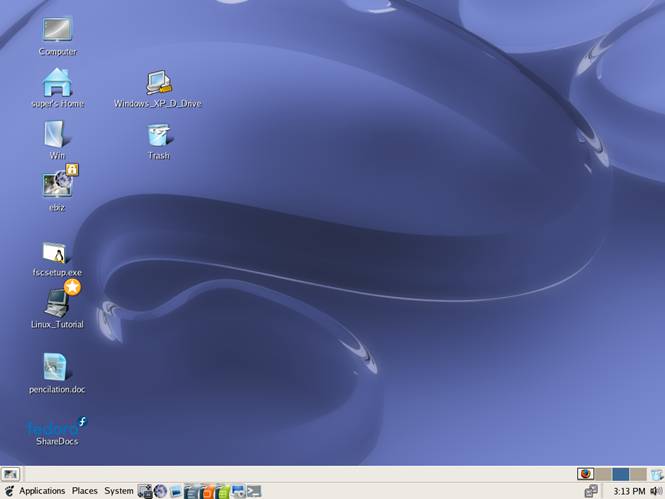
| The desktop itself and its menus are designed to look familiar to anyone who has ever used a computer. If you know how to use a mouse, you can probably find your way around a menu labeled "Programs" or "System." Those menus are part of the default setup for the GNOME panel, that grey bar at the top or bottom of the screen. |
| |
| In addition to the menus and a few application launchers (or, as people sometimes call them, buttons), you'll find tiny applications called applets that run in the panel. The clock is included by default, as is a list of currently open windows. To add more applets, right-click on a blank spot in the panel and select one of the items under Add to Panel. Some of the options are: |
| |
| Workspace Switcher: GNOME lets you have multiple workspaces, as though you had several monitors at once. To switch from one to another, click on the workspace you want. You can also move windows from one workspace to the next by dragging their icons in the workspace switcher. Right-click the applet to adjust the number of workspaces and display options. |
| |
| Battery Monitor: Does exactly what it says on the tin. Right-click the applet for options, or to suspend your system to disk. |
| |
| Character Palette: Don't have an international keyboard? Click one of the letters in the character palette, then paste or middle-click where you want it to go. Mine has á é í ó ú ñ and €, but you can select from dozens, or create your own. |
| |
| The file manager seems basic enough: click a folder and it opens to display the contents; click a file and the relevant application starts and displays the file. But click around a little, and you'll notice a few quirks. By default, the file manager works in "spatial" mode, similar to some editions of the Macintosh Finder, where each window represents a folder. |
| |
| Click a folder inside a window, and a new window opens up. Click the same folder again, and the original window will come to the front. If you want to change that behavior, right-click a folder and select Explore to get a Windows Explorer style file manager. |
| |
| 2. The GNOME Development Platform |
| |
| The GNOME development platform is used for more than just GNOME applications. It offers independent developers a number of attractions: |
| |
| Languages: GNOME libraries are mostly written in C, but they're almost universally wrapped for access by other languages. GNOME developers write in C++, Python, C#, Perl, Java, and more. Applications like Novell iFolder and the F-Spot camera tool are written in C# using the GTK+ and GNOME libraries. |
| |
| They do this by using the gtk-sharp and gnome-sharp wrapper libraries. Efficient low-level code and a fast C# runtime mean that they run quickly despite offering the conveniences of C# and the full GNOME toolkit to their developers. |
| |
| Developer Tools: |
| |
| The Glade user interface designer lets developers lay out user interfaces, which it saves as XML files accessible to applications making use of the libglade library--no more describing windows in dry code when you can draw them. |
| |
| IDEs like Monodevelop can even read the interface definition files and create dummy functions that you fill out, cutting out the boring part of development. Future developer tools include a new UI design tool built entirely in C# called Stetic. |
| |
| Systems and Standards: |
| |
| Developers have access to the system tray through the GNOME notification area, and desktop-wide messaging systems through dbus. Both are described on freedesktop.org, a website dedicated to development of free software desktop applications and tools. |
| |
| Developers following FreeDesktop.Org standards know that their applications will work equally well in KDE and GNOME, and that they are providing applications that will age gracefully and provide users with a coherent, consistent, and pleasant desktop software experience. |
| |
| |
| |
| |
| |


