| Components of Internet |
| |
| WEB Browsers |
| |
| Web Browser |
| |
| Web Browsers are the programs that work as an interface between the World Wide Web’s technology and user.
Web Browser is software that enables user to display and interact with the information which is located on a web page at a website on World Wide Web or local area network. |
 |
| These are also available for personal computer. Internet Explorer, Mozilla Firefox, Safari, Netscape and Opera are the popular browsers.
Web Browsers are the most commonly types of HTTP user agents. Web Browers may be different from each others by the features they support. |
|
| |
| It may be Text Based browser or Graphical browser. It makes the Internet more intuitive to use. There are many different types of browsers.
In Text Based browser, user can only see the texts but a Graphical browser allows user to see the images, sounds, multimedia and that things what WWW facilitate. |
| |
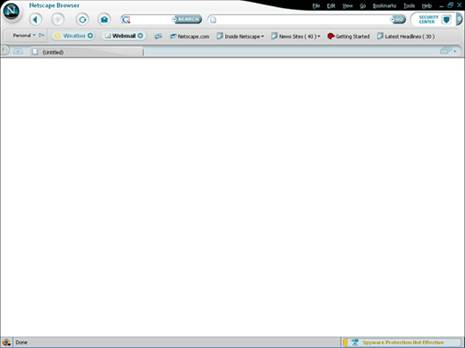
| This is Netscape browser. |
| |
 |
| |
| Elements of Web Browser |
| |
| Now, you are well-known of Web Browser. Here, we will discuss about the most important aspect of Web Browser. |
| |
| There are important features of the Internet have given bellow: |
| |
| Hyperlinks: |
| |
| This is the most navigational element of the Web Browser. Links are the pieces of text which takes you to another page or somewhere else within the same page. |
| |
| For an example:
This is the link for www.ebizel.com. |
| |
| You can differentiate the visited link and the links which have not been visited yet.
It has different color before visiting and after visiting. Such as, the above link has not been clicked or visited yet. But the link that is given bellow has been visited. So, also it has different color. |
| |
| This is the link for http://education.ebizel.com. |
| |
| Location/ Address Box: |
| |
| This is another way to go to the particular website. Through this way, you only need to type the URL (Universal Location Register) in the address box and press the Go button/ “Enter” key. |
| |
| Back Button: |
| |
| It is also an important button like other features in web browser. By clicking this button, you can navigate your last visited page in the same web browser. |
| |
| Go Menu: |
| |
| The Go menu has a list of all the pages you have visited. You can use the links from the list to get back to a page you have previously visited. It saves you having to repeatedly press the back button. In Netscape, use the "Go" menu on the menu bar. In Internet Explorer the menu is on the down arrow next to the Back button. |
| |
| Bookmarks/ Favorites: |
| |
| This is a place holder of web page. At the time of browsing, if you want to visit that page again in future then you can add it in Bookmarks or in Favorites. |
| |
| So, in feature, if you would like to open that page again then simply go to Favorites and click on that link. It will open that web page.
For your assistance, you can also make the folder in Favorites or in Bookmarks and add in that particular folder. |
| |
| Images: |
| |
| Images are the part of the pages which make web pages more interactive. But it also makes slow to load the web page. So, if you want to download the images then simply click the right mouse button on that image and click on “Save Picture As” option. |
| |
| Home Button: |
| |
| This button takes you back to “Home” page. You can define your home page from the Internet Option/ Browser’s Preference. You can give the address of most useful website or the website that you visit most |
| |
| Reload/ Refresh: |
| |
| This is very useful feature of the web browser. This button loads the whole web page again. It is useful when; |
| |
| 1) Parts of page are missing at the time of loading due to any reason. |
| |
| 2) You are browsing that web page which gets changes in its contents often and you want to view the new contents. |
| |
| New Browser Window: |
| |
| It is useful when you want to open the link page in new browser window. Sometime you want to keep the main page open and also want to view the link page. In that condition, you can opt for this option. To open new browser window, simply click the right mouse button on the link and choose “Open Link in New Window” option. |
| |
| Downloading Files: |
| |
| Sometime, you might want to get the file from the web and save it to your computer. It is easy to save that file in your computer. For that you need to: |
| |
1) Click the right mouse button on the link.
2) Choose the “Save Link As” / “Save Target As” option.
3) After choosing this option, a file window will come up. From this window, choose the location on your computer where you want to save the file.
4) Click OK button to start the downloading process.
5) A “Saving Location” dialogue box will come up and show you that how much time the downloading process will take. |
| |
You may find the links where a single click can download the file for you. There may appear a dialogue box and you may be asked whether you want to save, run or cancel.
Note: If you have downloaded the file then first scan it for virus before run them. |
| |
| Zip Files: |
| |
|
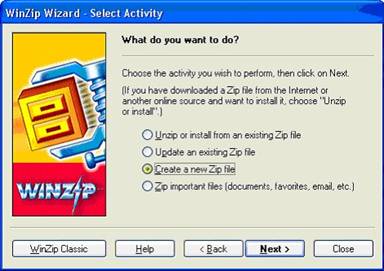
| Zipping is the act of packaging a set of files into a single file or archive that is called a zip file. Usually, the files in a zip file are compressed so that they take up less space in storage or take less time to send to someone.
There are several popular tools that can be used for zipping files: PKZIP for the DOS operating system, WinZip and Netzip for Windows, MacZip for Macintosh users, and Zip and UnZip for UNIX systems. The result of zipping is a single file with a ".zip" suffix. |
 |
|
| |
 |
| |
| Files/ Folders are being compressed to make the file/ folder size smaller to make them quicker to download. After you have downloaded the file, you need to unzip it using special software to open the file. If you have such software installed in your computer then you can simply open the file on double click. There is an icon of zip folder bellow: |
| |
|
| |
| Forms: |
| |
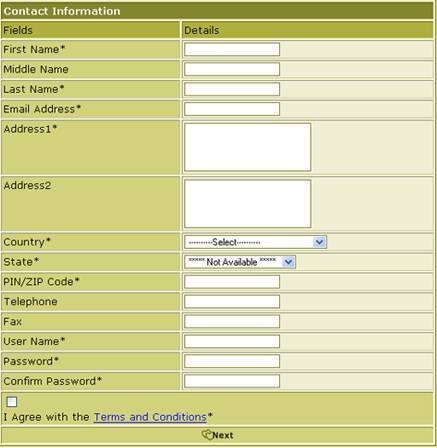
| Form is part of the web page into which you can enter information by typing in the text box, choosing an option by clicking a menu and clicking a checkbox. |
| |
| The following elements can make up the user-inputting portion of a form: |
| |
| • input field |
| |
o text – a simple text box that allows input of a single line of text
o checkbox – a check box
o radio – a radio button
o submit – a button that tells the browser to take action on the form (typically to send it to a server) |
| |
| • text area – much like the text input field except a text area allows for multiple rows of data to be shown and entered |
| |
| • select – a drop-down list that displays a list of items a user can select from |
| |
| Forms can be combined with various scripting languages to allow developers to create dynamic web sites. This includes both client-side and/or server-side languages. |
| |
| There is an example of form:- |
| |
|
 |
| |
| |
|
| |