| Illustrator Fundamentals |
| |
| Working with groups and subgroups |
| |
| For selecting all the grouped objects or for selecting all ungroup objects click on Selection tool. |
| |
| To work on a particular object in your illustrator document you need to select it.
If you convert ungroup objects to group object, first you should select all the object with pick tool, and Go to object> Group |
| |
| Here is an example below explaining grouping of objects. |
| |
| 1. Select any two or more objects. |
| |
| 2. Go to Object>Group. |
| |
| How to make group and subgroups of object. |
| |
| 1. Draw more than two objects ie.. five or six objects. |
| |
 |
| |
| 2. Group any two objects. |
| |
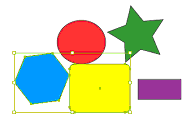 |
| Selected two objects indicating subgroup objects |
| |
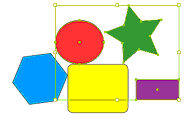
| 3. After that group other three objects. |
| |
 |
| |
| 4. Finally, group all the six objects. |
| |
| Now if you want to select subgroup click on group selection tool |
 |
|
| |
| Double click on any desired object. It will select the particular subgroup. |
| |
| |
|
| |


