| Illustrator Fundamentals |
| |
| Aligning Objects |
| |
| You use the Align panel (Window > Align) and the align options in the Control panel to align or distribute selected objects along the axis you specify. You can use either the object edges or anchor points as the reference point. |
| |
| The Align options are visible in the Control panel when an object is selected. If they do not appear, choose Align from the Control panel menu. |
| |
| • Select the objects to align or distribute. To align an anchor point on the object, use the Direct Selection tool and select the anchor point. |
| |
| • In the Align panel or Control panel, do any of the following: |
| |
| • To align or distribute relative to the bounding box of all selected objects, click the button for the type of alignment or distribution you want. |
| |
| • To align or distribute relative to one of the selected objects, click that object again (you don’t need to hold down Shift as you click this time). Then click the button for the type of alignment or distribution you want. |
| |
| When selected, every object has handles that surround it. The handles also serve another purpose—they make an invisible rectangular boundary around objects. This boundary is used when aligning objects. When objects are aligned, they are lined up using a common boundary or page edge. For instance, if two objects are aligned on the left, the objects are aligned using each invisible left boundary. |
| |
| To align objects: |
| |
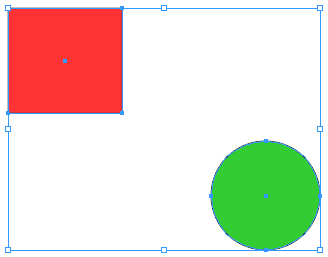
| 1. Select two or more objects. |
| |
 |
| |
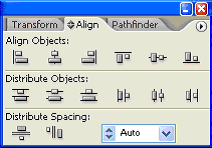
| 2. Choose Window > Align and Distribute. |
| |
| The Align and Distribute dialog box opens to the Align tab. |
| |
 |
| |
| 3. Click on the type of alignment you want: horizontal or vertical. You can align the objects in two dimensions simultaneously or in just one dimension. |
| |
| 4. Optional: To change the spacing between objects, click on the desired horizontal and/or vertical distribution options. |
| |
 |
| |
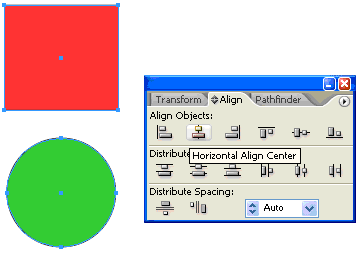
| Fig. Above image shows horizontal center alignment of two images. |
| |
| |
|
| |


