| Basics of Illustrator |
| |
| Transparency of objects |
| |
| Transparency is such an integral part of Illustrator that it’s possible to add transparency to your artwork without realizing it. You can add transparency to artwork by doing any of the following: |
| |
| • Lowering the opacity of objects so that underlying artwork becomes visible. |
| |
| • Using opacity masks to create variations in transparency. |
| |
| • Using a blending mode to change how colors interact among overlapping objects. |
| |
| • Applying gradients and meshes that include transparency. |
| |
| • Applying effects or graphic styles that include transparency, such as drop shadows. |
| |
| • Importing Adobe Photoshop files that include transparency. |
| |
| You can change the opacity of a single object, the opacity of all objects in a group or layer, or the opacity of an object’s fill or stroke. |
| |
| 1. Select an object or group (or target a layer in the Layers panel). |
| |
| If you want to change the opacity of a fill or stroke, select the object, and then select the fill or stroke in the Appearance panel. |
| |
| 2. Set the Opacity option in the Transparency panel or Control panel. |
| |
| To select all objects that use a specific opacity, select an object with that opacity, or deselect everything and enter the opacity value in the Transparency panel. Then choose Select > Same > Opacity. |
| |
| If you select multiple objects in a layer and change the opacity setting, the transparency of overlapping areas of the selected objects will change relative to the other objects and show an accumulated opacity. In contrast, if you target a layer or group and then change the opacity, the objects in the layer or group are treated as a single object. Only objects outside and below the layer or group are visible through the transparent objects. If an object is moved into the layer or group, it takes on the layer’s or group’s opacity, and if an object is moved outside, it doesn’t retain the opacity. |
| |
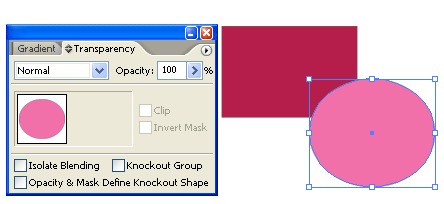 |
| Fig. Object before transparency |
| |
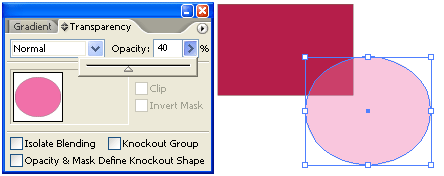 |
| Fig. Object after transparency |
| |
|
| |


