| Basics of Illustrator |
| |
| Transformation of Objects |
| |
| Transforming encompasses moving, rotating, reflecting, scaling, and shearing objects. You can transform objects using the Transform panel, Object > Transform commands, and specialized tools. You can also perform many types of transformations by dragging the bounding box for a selection. |
| |
| Sometimes you may want to repeat the same transformation several times, especially when you are copying objects. The Transform Again command in the Object menu lets you repeat a move, scale, rotate, reflect, or shear operation as many times as you want, until you perform a different transform operation. |
| |
| Transformation of Objects with Transform Panel |
| |
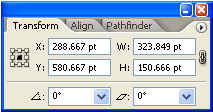
| The Transform panel (Window > Transform) displays information about the location, size, and orientation of one or more selected objects. By typing new values, you can modify the selected objects, their pattern fills, or both. You can also change the transformation reference point and lock the object’s proportions. |
| |
| All values in the panel refer to the bounding boxes of the objects except for the X and Y values, which refer to the selected reference point. |
| |
 |
| |
| Note: The reference point locator in the Transform panel specifies an object’s reference point only when you transform the object by changing the values in the panel. Other methods of transforming (such as using the Scale tool) use the object’s center point or the pointer location as the reference point. |
| |
| Example of Transformation of object |
| |
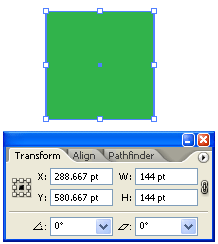
| Draw a rectangle. Give it the fill and stroke of your choice and open the transform panel. |
| |
| Type 144 in the Width box and 144 in the Height box. |
| |
 |
| |
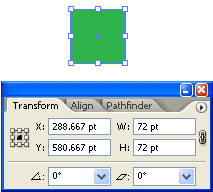
| Now, resize this by 50%. Half of 144 is 72 so type 72 in the Width and Height boxes then hit the enter key to set the transform. |
| |
 |
| |
| Transformation of object with Selection Tool |
 |
|
| |
| 1. Select one or more objects. |
| |
| 2. Select the Selection tool or the Free Transform tool |
 |
|
| |
| 3. Drag a bounding box handle until the object is the desired size. Objects scale relative to the opposite handle of the bounding box. |
| |
| 4. Do any of the following to control the scaling behavior: |
| |
| • To maintain the object’s proportions, hold down Shift as you drag. |
| |
| • To scale relative to the object’s center point, hold down Alt (Windows) or Option (Mac OS) as you drag. |
| |
| Shear objects |
| |
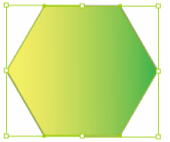
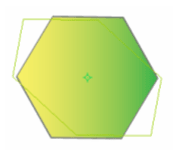
| Shearing an object slants, or skews, the object along the horizontal or vertical axis, or a specified angle that’s relative to a specified axis. Objects shear relative to a reference point which varies depending on the shearing method you choose and can be changed for most shearing methods. You can lock one dimension of an object as you shear it, and you can shear one object or multiple objects simultaneously. |
| |
| 1. Select one or more objects. |
| |
 |
| |
| 2. Select the Shear tool |
 |
|
| |
| 3. Do one of the following: |
| |
| • To shear relative to the object’s center, drag anywhere in the document window. |
| |
| • To shear relative to a different reference point , click anywhere in the document window to move the reference point, move the pointer away from the reference point, and then drag until the object is at the desired slant. |
| |
| • To shear along the object’s vertical axis, drag anywhere in the document window in an up or down direction. To constrain the object to its original width, hold down Shift. |
| |
 |
| |
|
| |


