| Introduction of Illustrator |
| |
| Description of Application Window |
| |
| You create and manipulate your documents and files using various elements such as panels, bars, and windows. Any arrangement of these elements is called a workspace. When you first start an Adobe Creative Suite component, you see the default workspace, which you can customize for the tasks you perform there. For instance, you can create one workspace for editing and another for viewing, save them, and switch between them as you work. |
| |
| Although default workspaces vary across Flash, Illustrator, InCopy, InDesign, and Photoshop, you manipulate the elements much the same way in all of them. |
| |
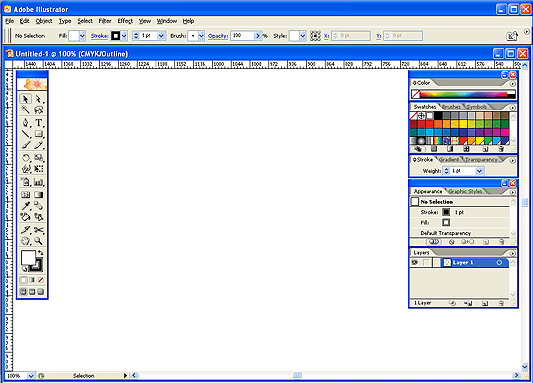
| • The menu bar across the top organizes commands under menus. |
| |
| • The Tools panel (called the Tools palette in Photoshop) contains tools for creating and editing images, artwork, page elements, and so on. Related tools are grouped together. |
| |
| • The Control panel (called the options bar in Photoshop) displays options for the currently selected tool. (Flash has no Control panel.) |
| |
| • The Document window (called the Stage in Flash) displays the file you’re working on. |
| |
| • Panels (called palettes in Photoshop) help you monitor and modify your work. Examples include the Timeline in Flash and the Layers palette in Photoshop. Certain panels are displayed by default, but you can add any panel by selecting it from the Window menu. Many panels have menus with panel-specific options. Panels can be grouped, stacked, or docked. |
| |
| Adobe Illustrator is a drawing program which creates images using mathematical formulas - rather than painting with pixels or bits. The resulting images are smooth and perfect - as if you had drawn them using technical tools (like t-squares, compasses, french curves and so forth). This type of drawing (and it is referred to as a drawing program) is based on Adobe's PostScript language. The paths, or lines, which you create in Illustrator are made up of a series of control points. Connected, these points represent a path, or line, and create shapes, much like cut paper. |
| |
| Illustrator is widely used in the visual communication profession. It can work with type to a degree that the page layout programs can't - in terms of working type around or within a shape, or along wavy lines, and manipulating their shapes (not just weight and horizontal scale). It is used by newspapers and magazines to create charts and graphs, as well as being an ideal program for technically oriented images (exploded views of machinery, etc.) |
| |
| Remember, to use images created in Illustrator in Quark Xpress, you must save your documents in EPS format when you save them. To export all the layers in an Illustrator file, choose "export" from the file menu and check the appropriate boxes. |
| |
| This portion of the site is by no means a complete reference for Adobe Illustrator. It will, however, introduce you to basic concepts and the general idea of how this program works. A lot of your success will depend on creative exploration, experimentation, and intuition. |
| |
| The Adobe Illustrator desktop is fairly similar to other drawing and page layout programs. It has a tool box, title bar, "drawing table," and image area. |
| |
| In the case of Adobe Illustrator, the image area and the page size are two distinct areas. Anything outside the dotted lines will not print. If your document is too large to fit on the paper you'll be printing on, you can elect to "tile" the image—that is, it will print in portions on several sheets of paper that you can then trim and paste together. Choose "tile imagable areas" in the setup panel of the print dialog box, under the File menu. |
| |
 |
| |
| When you open the program for the first time, you must specify the size of the “artboard-? that is, the size of the image you are creating. |
| |
| You can name your document here, but that doesn't mean you're saving it. |
| |
| In the artboard setup area, you can choose from several standard sizes, or type in your own dimensions. Again, remember that your document size and the paper you will print on are two separate issues. |
| |
| For most purposes, selecting CMYK for color mode is appropriate. Choose RGB if, for some reason, you're creating images for the web, or for viewing only on a monitor. |
| |
| If you've made a mistake with your initial specifications, you can change them in "document setup" and "document color mode" under the File menu. |
| |
| |
|
| |


