| Printing a Worksheet |
| |
| Print Properties |
| |
| There are many print options. You set print options on the Page Layout tab. Among other things, you can set your margins, set your page orientation, and select your paper size. |
| |
| Margins define the amount of white space that appears on the top, bottom, left, and right edges of your document. The Margin option on the Page Layout tab provides several standard margin sizes from which you can choose. |
| |
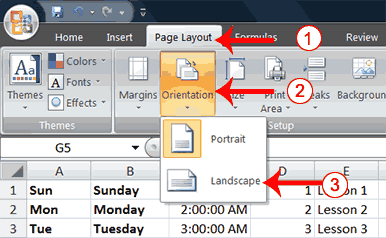
| There are two page orientations: portrait and landscape. Paper, such as paper sized 8 1/2 by 11, is longer on one edge than it is on the other. If you print in Portrait, the shortest edge of the paper becomes the top of the page. Portrait is the default option. If you print in Landscape, the longest edge of the paper becomes the top of the page. |
| |
 |
| |
| Paper comes in a variety of sizes. Most business correspondence uses 8 1/2 by 11 paper, which is the default page size in Excel. If you are not using 8 1/2 by 11 paper, you can use the Size option on the Page Layout tab to change the Size setting. |
| |
| Set the Page Layout |
| |
 |
| |
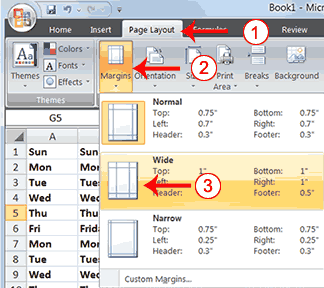
1.	Choose the Page Layout tab.
2.	Click Margins in the Page Setup group. A menu appears.
3.	Click Wide. Word sets your margins to the Wide settings.
|
| |
| Set the Paper Size |
| |
 |
| |
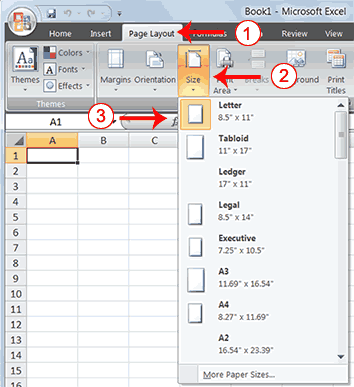
1.	Choose the Page Layout tab.
2.	Click Size in the Page Setup group. A menu appears.
3.	Click the paper size you are using. Excel sets your page size.
|
| |
| For Animated Presentaiton Click Here! |
| |
|
| |
| |


