| Functions in Excel 2007 |
| |
| Excel 2007 Date Function |
| |
| The TODAY( ) function automatically retrieves the current date. It is useful for creating spreadsheets that continuously update themselves such as to determines the number of days a payment is overdue. |
| |
| The NOW( ) function is similar to the TODAY( ) function, except it retrieves the current date along with the current time. |
| |
| To demonstrate the use of Date and Time Functions: TODAY |
| |
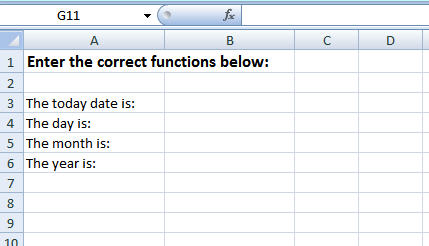
| . Create a spreadsheet as follow: |
| |
 |
| |
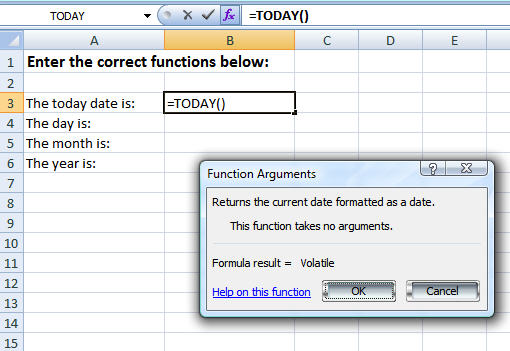
. Click on the cell B3, where the answer will appear.
. From the Formula tab, in the Function Library group, click the Date & Time icon and from the drop down menu, click the TODAY command. |
| |
 |
| |
. From the Function Arguments dialog box displayed, click OK.
. The today date will display on the cell B3. |
| |
| Note: If you directly type =TODAY( ) to the cell B3, the same result will appear. The following day, month and year functions are based on this date. |
| |
| To demonstrate the use of Date and Time Functions: DAY |
| |
| . Click on cell B4 and enter the following function: |
| =DAY(B3) |
| |
| . Press the Enter key. You will notice that the current day of the month is displayed on the cell B4. |
| |
| To demonstrate the use of Date and Time Functions: MONTH |
| |
. Click on cell B5 and enter the following function:
=MONTH(B3)
. Press the Enter key. You will notice that the current day of the month is displayed on the cell B5. |
| |
| To demonstrate the use of Date and Time Functions: YEAR |
| |
. Click on cell B6 and enter the following function:
=YEAR(B3) |
| |
| . Press the Enter key. You will notice that the current day of the month is displayed on the cell B6. |
| |
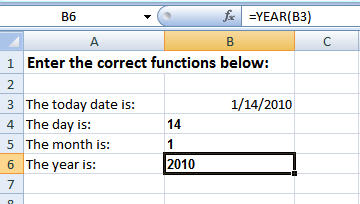
| . Here are the results: |
| |
 |
| |
| The Excel 2007 DATE function is a quick and easy way to insert a date into a formula. DATE( ) accepts three numbers, each of which represents a different component of the date. Here's what it looks like: |
| |
| DATE(year, month, day) |
| |
| So, if you enter this formula into a cell:
=DATE(2010, 1, 1) |
| |
| Excel displays the date 1/1/2010. |
| |
| For Animated Presentaiton Click Here! |
| |
| |
|
| |
| |


