| A First Look at Excel 2007 |
| |
| Excel 2007 Office Button |
| |
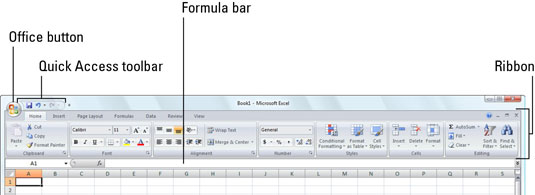
| In the top-left corner of the Excel 2007 window, you find the Office button (the round button with the Office four-color icon), which provides access to common file-related commands. The Office button replaces the File menu from previous versions of Excel and also includes commands new to Excel 2007. |
| |
 |
| |
| Find the Office button in the upper-left corner of the Excel 2007 window. |
| |
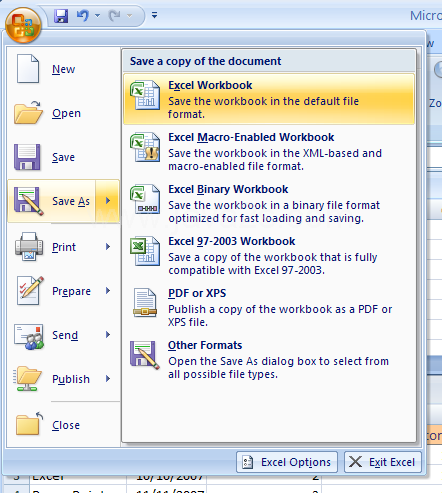
| When you click the Office button, a drop-down menu appears with all the commands you need for working with Excel workbook files, such as saving, opening, and closing files. If a command displays an arrow, point to the command to see a submenu of additional options. For example, the Save As command includes options for saving your Excel file in different file formats. |
| |
| The Office menu also holds, in the lower-right, an Exit Excel button that you can click when you're ready to close the program. Next to that is an Excel Options button that you can click to change settings in Excel 2007, customize the Quick Access Toolbar, manage add-ins, and get in touch with Microsoft to keep Excel updated and running smoothly. |
| |
 |
| |
| Click the Office button to access file-related commands or change options in Excel 2007. |
| |
| |
|
| |
| |


