| . Is part of the java.awt package. You will need an import statement to access the class with its abbreviated name. | |
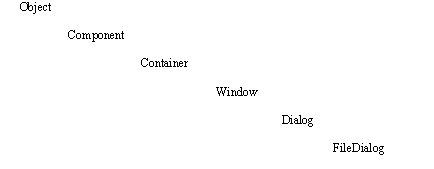
| . Has many ancestor classes as indicated by the following diagram: | |
 |
|
| . Can be instantiated to display a modal dialog window from which the user can select a file. Because it is a modal dialog, once an application makes a FileDialog object visible, it cannot continue until the user has chosen a file. | |
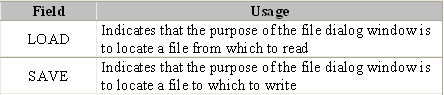
| . Has two static fields that indicate whether the file will be used for input or output. | |
| They are | |
 |
|
| . Has several constructors. The most frequently used is demonstrated by | |
| FileDialog fd = new FileDialog(this, "Choose file", FileDialog.LOAD); fd.setVisible(true); |
|
| which constructs and displays a file dialog window for the current (this) object. The title of the file dialog window will be "Choose file", and the chosen file will be used for input. | |
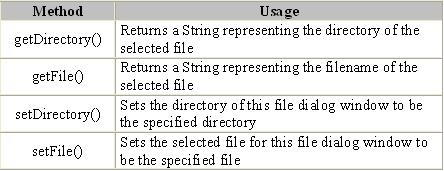
| . Has a number of methods. The most frequently used are as follows: | |
 |
|
| Consult the Java API documentation for more details. | |
| Sample program | |
| The following menu-driven, Windows program uses the File and FileDialog classes to display a variety of information about a file selected by the user: | |
| import java.awt.*; import java.awt.event.*; import java.util.*; import java.io.*; public class App extends Frame implements ActionListener { // Object references. MenuBar mainBar; Menu fileMenu; MenuItem find; MenuItem exit; TextArea fileInfo; // Processing starts here. public static void main(String[] args) { App myWindow = new App("File Analyzer"); myWindow.setSize(500, 200); myWindow.setVisible(true); } // Class constructor. public App(String title) { // Usual boilerplate for startup and shutdown. super(title); //addWindowListener(); new WindowAdapter() { public void windowClosing(WindowEvent e) { dispose(); System.exit(0); } } ); // Create the frame's menu bar. mainBar = new MenuBar(); setMenuBar(mainBar); fileMenu = new Menu("File"); find = new MenuItem("Find"); find.addActionListener(this); fileMenu.add(find); fileMenu.addSeparator(); exit = new MenuItem("Exit"); exit.addActionListener(this); fileMenu.add(exit); mainBar.add(fileMenu); // Create the file information text area. fileInfo = new TextArea(" Use the menu bar to find a file...", 10, 40, TextArea.SCROLLBARS_NONE); fileInfo.setFont(new Font("Monospaced", Font.PLAIN, 12)); fileInfo.setEditable(false); add(fileInfo); } // Required method of the ActionListener interface. public void actionPerformed(ActionEvent e) { // If the user selected "File" | "Find" from the menu, let them // choose a file to be analyzed. Then, display its information. if (e.getSource().equals(find)) { // Create and display a modal file dialog box through which the // user can choose the file they want to analyze. FileDialog fd = new FileDialog(this, "Choose file", FileDialog.LOAD); fd.setVisible(true); // Construct a File object for the file the user selected. File f = new File(fd.getDirectory() + File.separator + fd.getFile()); // Display information about the file the user selected. fileInfo.setText(" FILE INFORMATION "); fileInfo.append(" Path: " + f.getPath()); fileInfo.append(" Directory: " + fd.getDirectory()); fileInfo.append(" File: " + f.getName()); fileInfo.append(" Last modified: " + new Date(f.lastModified()).toString()); fileInfo.append(" Byte length: " + f.length()); fileInfo.setCaretPosition(0); } // If the user selected "File" | "Exit" from the menu, terminate // the application. if (e.getSource().equals(exit)) { dispose(); System.exit(0); } } } |
|
|
 |
 |
 |