| Working with Text |
| |
| Moving Text Block/Rotating |
| |
| Rotating, Sizing, and Locating Text |
| |
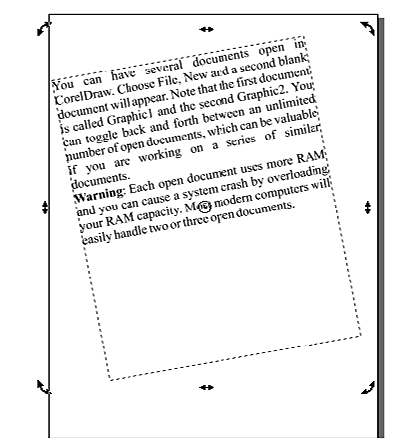
| A Text can be resized, rotated by dragging object handles. You can also move a selected object by dragging the X that appears in the middle of a selected object. To rotate text, choose the Pick tool (the one at the top of the Toolbox) and click on an object twice. As you do, the handles change from small black squares to curved arrows, as shown in Figure below. |
| |
 |
| |
| Drag the rotation handles in a clockwise or counterclockwise direction to rotate the selected object. |
| |
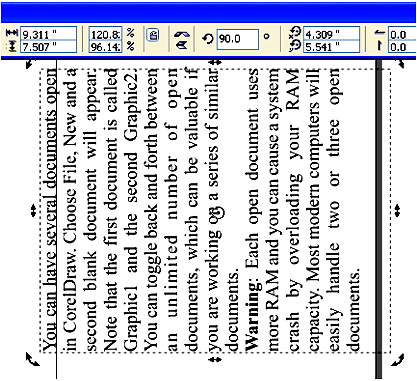
| You can also precisely define the size, location, and rotation using the Property bar. To flip text to the left, enter 90 in the Rotation Angle box in the Property bar. The results are illustrated in Figure below: |
| |
 |
| |
| Note: You can edit or reformat rotated text. It can get a little tricky to edit rotated text in the Drawing window because the text editing cursor does not rotate with the text. You might find it easier to edit rotated text in the Format Text or Edit Text dialog boxes. |
| |
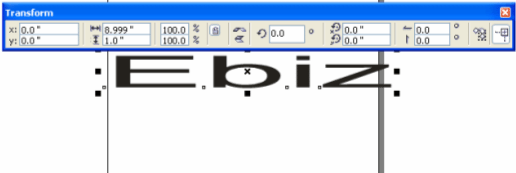
| To precisely locate or size a text object, you can enter coordinates or dimensions in the Position or Size boxes in the Property bar. |
| |
| Assigne a size of exactly 1" by 9" and located the text object 1" from the left side of the page and 5.5" from the bottom. The location coordinates are defined from the center of the object. |
| |
 |
| |
| |
|
| |


