| Effects on objects |
| |
| 3-D Effect on Object |
| |
| In this tutorial you will learn how to create 3D objects in coreldraw. 3D objects can be created in CorelDraw with the help of Interactive Extrude Tool. |
| |
 |
Interactive Extrude Tool: is for creating objects that appear three-dimensional by creating vector extrusions. |
|
| |
| . Select Text Tool. Type something, stretch it to bigger size, and fill some bright color say yellow. Text must have black outline and keep the text selected. |
| |
 |
| |
| . Click on Interactive Extrude Tool. |
| |
| . Bring the cursor inside the text. The cursor will change. |
| |
| . Press and drag the cursor to the top left corner. |
| |
| . You will notice that the text is converted into 3D. |
| |
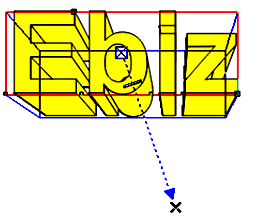 |
| |
| . Try to drag the cursor in any other direction while you practice this lesson for the second time. |
| |
| . You can adjust extrude attributes such as color, extude rotation, bevels and lighting . |
| |
| To change or to adjust extrude attributes |
| |
| . Select object. |
| |
| . Click on Interactive Extrude Tool. |
| |
| . Do any of the following adjustments on the property bar. |
| |
 |
Extrude Rotation button: For adjusting x, y & z angles of extrude direction. |
 |
Extrude color button: For adjusting colors. |
 |
Extrude Bevel button: For adjusting bevel depth and angle of object. |
 |
Extrude Bevel Lightning: For adjusting the lights in bevel of object. |
|
| |
| Note: You can also create extrude by clicking Effects > extrude. |
| |
| |
|
| |


