| Effects on objects |
| |
| Working with Envelop Tool: |
| |
 |
Interactive Envelop Tool: is for shaping objects, including lines, artistic text, and paragraph text frames by applying envelopes to them. |
|
| |
| Here is an example below of Envelop Tool. |
| |
| . Type the text, say "Ebiz". Stretch it to make it bigger. Keep it selected. |
| |
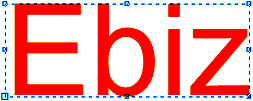 |
| |
| . Click the Interactive envelope tool . |
| |
| . Create an envelope with "single Arc" option in the property bar |
 |
|
| |
| . Stretch the center top node to the upward direction. |
| |
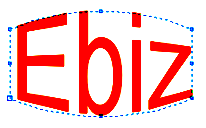
| . The stretch get stretched in the form of single arc. |
| |
| . You will notice that the node you stretched just now has two arrows along with it in the opposite direction. |
| |
 |
| |
| . Try to move the arrows using the same cursor in any direction. |
| |
| . You will notice that it does not move. |
| |
| . You can move only the node, not those arrows. |
| |
| . This means you have limited capacity to edit this kind of envelope. |
| |
| . Now go back to the first step using undo option and apply the envelope using "Unconstrained" mode in the property bar. |
 |
|
| |
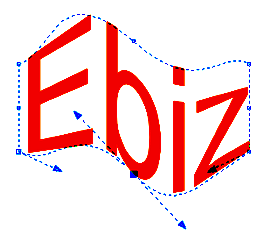
| . Stretch the same top center node upward and try to move those arrows to any direction using the same cursor. |
| |
| . This time, you will notice that the arrows have no restrictions and you can move them smoothly to any direction as shown below. |
| |
 |
| Note: You can also create envelop by clicking Effects > envelop or by pressing Ctrl+F7. |
| |
| |
|
| |


