Most of these commands can be accessed from the Tools pull-down menu. Here is a list of those commands (click on the icon for more information) :
| COMMAND | KEYBOARD | ICON | DESCRIPTION |
| Distance | DI |  |
Distance Measures the distance and angle between two points |
| Area | AREA |  |
Area Calculates the area and perimeter of objects or of defined areas. |
| Mass Properties | MASSPROP |  |
Mass Properties Calculates and displays the mass properties of regions or solids. |
| List | LI |  |
List Displays database information for selected objects. |
| ID | ID |  |
ID Point Displays the coordinate values of a location. |
AREA is a command that can be very useful. This can used to calculate square footage for floors, property lots, or even something like sheet metal parts. To use this command, you can type in AREA and see this on your command line:
<First point>/Object/Add/Subtract: O
Select objects:<SELECT AN OBJECT>
Area = 56.7498, Perimeter = 30.6775
MASS PROPERTIES is an option for finding information about 3D solid objects. You can find out the total volume and from there calculate the weight based on volume. AutoCAD also figures out some important engineering figures for you such as the center of gravity for an object. This listing shows you all the information you can get from MASSPROP:
Select objects: 1 found
Select objects:
---------------- SOLIDS ----------------
Mass: 150.0000
Volume: 150.0000
Bounding box: X: 11.7974 -- 16.7974
Y: 2.7812 -- 7.7812
Z: 0.0000 -- 6.0000
Centroid: X: 14.2974
Y: 5.2812
Z: 3.0000
Moments of inertia: X: 6296.1089
Y: 32774.6574
Z: 35470.7663
Products of inertia: XY: 11326.0088
YZ: 2376.5252
ZX: 6433.8101
Radii of gyration: X: 6.4787
Y: 14.7817
Z: 15.3776
Press ENTER to continue:
Principal moments and X-Y-Z directions about centroid:
I: 762.5000 along [1.0000 0.0000 0.0000]
J: 762.5000 along [0.0000 1.0000 0.0000]
K: 625.0000 along [0.0000 0.0000 1.0000]
Write to a file ? <N>:
LINE Layer: 0
Space: Model space
Handle = 22
from point, X= 6.2991 Y= 5.0491 Z= 0.0000
to point, X= 6.2035 Y= 2.2798 Z= 0.0000
Length = 2.7709, Angle in XY Plane = 268
Delta X = -0.0956, Delta Y = -2.7692, Delta Z = 0.0000
 for the same line: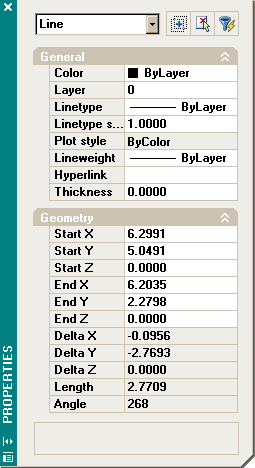
After List, the next option is ID POINT. This allows you to select anywhere on the screen and have AutoCAD return the X,Y&Z co-ordinates for that point. Here is a listing of ID POINT:
X = 155'-2 1/2" Y = 48'-9 3/16" Z = 0'-0"
Time Displays the date and time statistics of a drawing. Type TIME.
Status Displays drawing statistics, modes, and extents. Type STATUS.
Set Variable Lists or changes the values of system variables. Type SETVAR.
TIME and STATUS are two inquiries that give you information about the system, as opposed to objects.
Current time: Tuesday, May 16, 2000 at 11:55:09:600 AM
Times for this drawing:
Created: Tuesday, May 16, 2000 at 11:21:43:720 AM
Last updated: Tuesday, May 16, 2000 at 11:21:43:720 AM
Total editing time: 0 days 00:33:25.880
Elapsed timer (on): 0 days 00:33:25.880
Next automatic save in: 0 days 00:03:45.120
Display/ON/OFF/Reset:
120 objects in Drawing1.dwg
Model space limits are X: 0.0000 Y: 0.0000 (Off)
X: 12.0000 Y: 9.0000
Model space uses X: -4.1963 Y: -0.2930 **Over
X: 52.2702 Y: 34.7170 **Over
Display shows X: -9.5333 Y: -7.2543
X: 68.2812 Y: 37.6074
Insertion base is X: 0.0000 Y: 0.0000 Z: 0.0000
Snap resolution is X: 0.5000 Y: 0.5000
Grid spacing is X: 0.5000 Y: 0.5000
Current space: Model space
Current layout: Model
Current layer: "TEXT"
Current color: BYLAYER -- 3 (green)
Current linetype: BYLAYER -- "Continuous"
Current lineweight: BYLAYER
Current elevation: 0.0000 thickness: 0.0000
Fill on Grid off Ortho off Qtext off Snap off Tablet off
Object snap modes: Center, Endpoint, Intersection, Midpoint, Quadrant,
Extension
Free dwg disk (C:) space: 2797.3 MBytes
Free temp disk (C:) space: 2797.3 MBytes
Free physical memory: 13.6 Mbytes (out of 509.8M).
Free swap file space: 752.0 Mbytes (out of 1246.3M).
The last inquiry, SET VARIABLE (SETVAR), allows you to change any system variables, or if you like AutoCAD will list them for you. The details of this command are not covered in this lesson. You must be VERY careful when working with system variables.
 |
 |
 |